If you are searching for how to download modpacks from Modrinth, the safe path is simple: open the official project page, choose a version that matches your Minecraft edition and loader, then download the file listed for that version. Most players receive an .mrpack package and then import it into Modrinth App or another compatible launcher. The download step and the installation step are related, but they are not the same task.
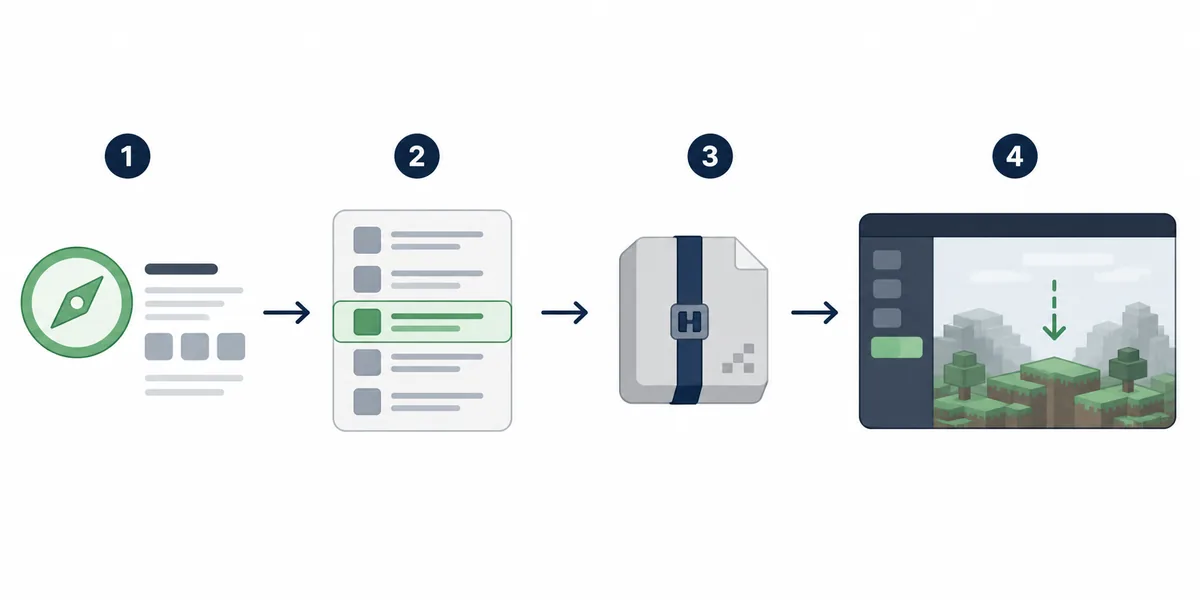
What you are downloading from Modrinth
A Modrinth modpack project can expose several downloads on the same project or version page. The main pack is often an .mrpack file: a manifest-based archive that tells a compatible launcher which Minecraft version, loader, files, hashes, and overrides belong to the instance. It is not a single mod JAR and it may not contain every mod file directly.
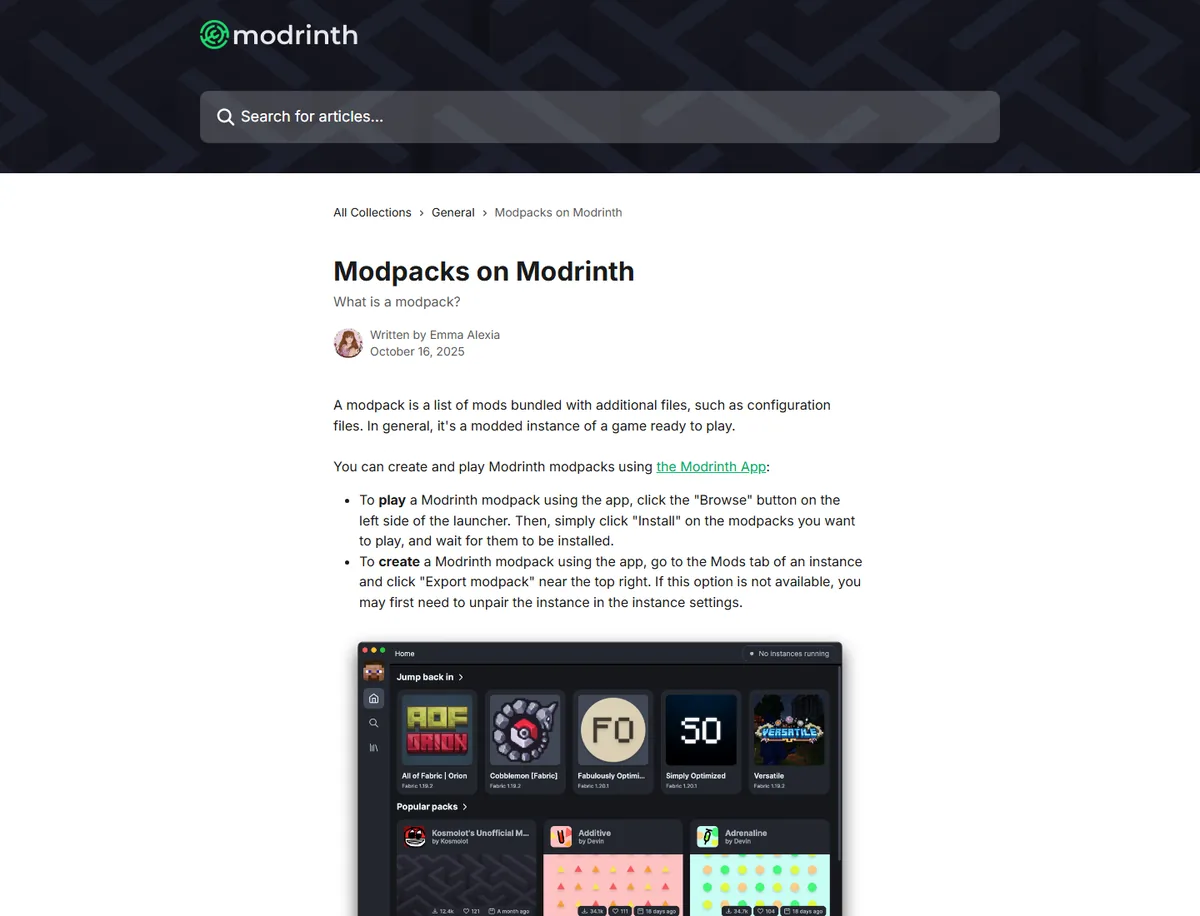
Modrinth's own explanation of modpacks on Modrinth describes a pack as a group of mods plus configuration and related files. The official MRPACK format guide explains why the manifest and download references matter when a file is opened outside a supported launcher.
How to download modpacks from Modrinth step by step
- Open the project page. Start from the creator's Modrinth project rather than a re-upload or an unexplained file mirror. Confirm that the project is the pack you intended to use.
- Check the Minecraft edition. Most MRPACK searches are about Minecraft Java Edition. Do not assume that an MRPACK works with Bedrock; the two ecosystems use different pack and add-on workflows.
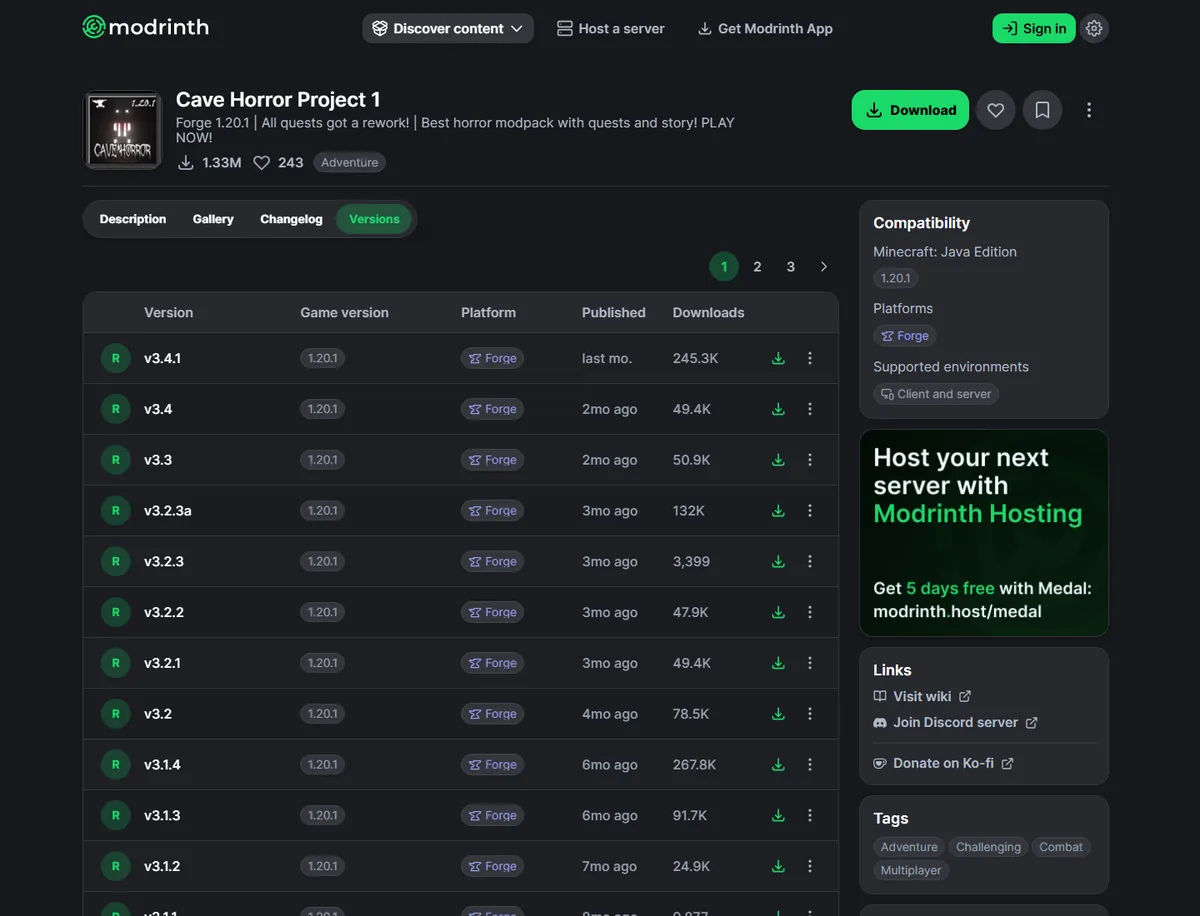
- Open the Versions tab. Compare the available releases instead of clicking a random file from a search result. The version list gives you a place to check Minecraft version, loader, release status, and other compatibility clues.
- Match the loader and game version. Look for Fabric, Forge, NeoForge, or Quilt and match the Minecraft version already used by your intended launcher or instance. A correct project with the wrong loader is still the wrong download.
- Open the exact version. Read the version details and files. If the project includes a separate server archive, do not select it for a normal client installation. If you only see one MRPACK, treat it as a manifest-based pack and plan the import step.
- Download and keep the original filename. Save the file to a known folder, wait for the download to finish, and do not rename
.mrpackto.zipas a substitute for conversion. A renamed archive does not fetch referenced mods or build a playable instance.
Choose the right next step after the download
Downloading a modpack file does not tell you which program should open it. Use the route that matches the job you are trying to complete.
| Your goal | Best next step | What to avoid |
|---|---|---|
| Play the pack with the simplest supported workflow | Import the MRPACK into Modrinth App, then let the app create the instance and fetch the referenced files. | Moving the raw archive into .minecraft/mods. |
| Use a non-Modrinth launcher | Try a launcher with MRPACK import support, such as Prism Launcher, and follow its instance-import flow. | Assuming every launcher treats MRPACK as an ordinary ZIP profile. |
| Inspect files or prepare a manual install | Use the MRPACK Reader to inspect the manifest, or use the MRPACK to ZIP converter when a ZIP-style output is actually needed. | Expecting a rename-only operation to download missing mod JARs. |
| Install a dedicated server | Check whether the creator publishes a server file and follow the Modrinth server-pack download guide before deployment. | Uploading a client MRPACK to a host that does not support Modrinth imports. |
| Move the pack into TLauncher or CurseForge | Use the site-specific TLauncher guide or CurseForge migration guide. | Assuming that a successful download means direct import will work. |
How to download a Modrinth modpack without a launcher
You can often download the file from the project version page without installing Modrinth App. That gives you the MRPACK itself, not necessarily a folder containing every mod. When a launcher is unavailable, the practical choices are:
- Use a compatible third-party launcher and import the local MRPACK.
- Inspect
modrinth.index.jsonwith the browser-based reader before deciding whether manual extraction is safe. - Convert the pack only when you genuinely need a ZIP-style file layout, then check the output and any failed-download notes.
The browser may be unable to fetch some external files because of CORS or hosting restrictions. In that case, the converter can report files that need separate handling, but it cannot guarantee that a manual folder is equivalent to a clean launcher-created instance. For a full installation decision tree, continue to How to Install MRPACK Files in Minecraft.
Common mistakes when downloading Modrinth modpacks
Choosing a server file for a client instance
A file with “Server Pack” in its name is intended for a server workflow, not automatically for a player's launcher. If the project offers several files, read the filename and supported environment before downloading.
Mixing Minecraft versions or loaders
Fabric, Forge, NeoForge, and Quilt are not interchangeable in a random way. Match the exact loader and Minecraft version used by the profile you plan to launch, then let the compatible launcher resolve the pack.
Renaming instead of converting
An MRPACK uses a manifest and may reference files that are not bundled inside the archive. Renaming the extension only changes the name visible in Explorer or Finder. It does not perform the conversion described in the MRPACK to ZIP guide.
Using a third-party mirror without checking the project
Reuploads can be incomplete, outdated, or renamed. Prefer the original project and version page, then compare the downloaded filename and size with the page's file listing before importing it.
FAQ
Can I download a Modrinth modpack without Modrinth App?
Yes. You can download the MRPACK from the project's version page and then import it into another compatible launcher, inspect it, or convert it for a manual workflow. The existing MRPACK opening guide explains how to choose between those paths.
Why did Modrinth download an MRPACK instead of a ZIP?
MRPACK is Modrinth's manifest-based modpack format. It can describe dependencies, file paths, hashes, download URLs, and override folders without bundling every referenced mod JAR directly. That is why a supported launcher is normally the easiest next step.
Can I use the same Modrinth download on a Minecraft server?
Not automatically. Check whether the creator provides a server-specific ZIP or MRPACK, whether the version supports a server, and whether the host can import Modrinth packs. Use Install MRPACK on a Minecraft Server for the server-side workflow.
Can I download a Modrinth modpack for TLauncher or CurseForge?
You can download the MRPACK, but direct import is a separate compatibility question. For TLauncher, read how to add an MRPACK file safely. For CurseForge, follow the Modrinth-to-CurseForge migration guide rather than assuming the raw file is a native profile export.
Sources and verification
- Modrinth support: Modpacks on Modrinth for the first-party description of modpacks and Modrinth App workflows.
- Modrinth support: Modrinth Modpack Format (MRPACK) for manifest, files, download references, and override behavior.
- Modrinth modpacks for the official project directory and the project/version pages where downloads are published.
Final takeaway
To download a Modrinth modpack safely, start from the official project, select a matching version and loader, download the intended MRPACK, and then choose a compatible launcher or inspection workflow. Keep server-pack, TLauncher, CurseForge, and MRPACK-to-ZIP questions separate so the file you download matches the job you actually want to complete.
Need a ZIP-style file instead?
If your launcher or server workflow cannot import MRPACK, use the browser-based converter to inspect the result and understand which files still need separate handling.
Open MRPACK to ZIP Converter