Quick answer
You can install an MRPACK on a Minecraft server, but the safest path depends on your server host. Use Modrinth Servers, a host or panel that supports Modrinth packs, mrpack-install style tooling, or a Docker image with Modrinth support when available. If your host only accepts folders or normal ZIP uploads, convert the MRPACK to ZIP, inspect the output, install the correct loader, and copy only the files that belong on the server.
The key rule is simple: do not treat a raw .mrpack as a finished server folder. It is a manifest-driven package, and many mod files may be referenced by download URLs rather than stored directly inside the archive.
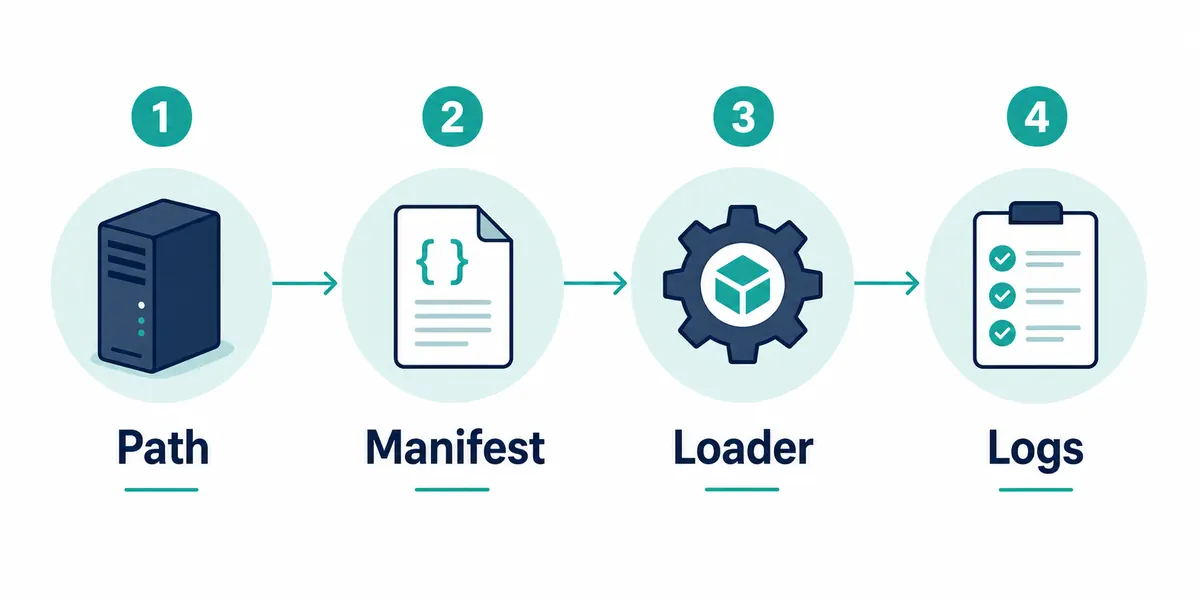
Why server installs are different from player installs
On a player computer, a launcher such as Modrinth App or Prism Launcher can read the MRPACK manifest, download the referenced files, build an instance, and apply the right override folders. A server does not always have that same import flow. Some hosts expect a ready-to-run server directory. Some panels can install Modrinth projects directly. Some Docker setups can download a Modrinth pack during container startup.
That difference is why a pack can work perfectly in a launcher and still fail when uploaded to a server. The server needs the same Minecraft version, the same loader family, compatible mod versions, required config files, and the correct side-specific content. It also needs you to avoid client-only mods that make sense in a player's instance but crash on a dedicated server.
Choose the right server workflow first
Before extracting files, decide which path your environment actually supports. This prevents the common mistake of copying half a pack into a server folder and then chasing missing dependency errors.
| Server environment | Best MRPACK path | Why it is safer | What to verify |
|---|---|---|---|
| Modrinth-hosted server | Use the host's Modrinth modpack install flow. | It is designed around Modrinth projects and avoids manual manifest handling. | Pack version, loader, Minecraft version, and server plan limits. |
| Panel or host with MRPACK support | Upload or select the pack through the supported import option. | The panel can resolve the manifest instead of treating the file as a normal ZIP. | Whether the panel supports raw MRPACK, project slug, project ID, or URL. |
| Docker server | Use a container image that supports Modrinth pack variables. | The container can install the pack and matching loader during startup. | Environment variables, persistent volume, loader type, and Java version. |
| Manual host or VPS | Convert MRPACK to ZIP, inspect files, install loader, then copy server-safe content. | You keep control and can remove client-only content before launch. | Failed downloads, server-overrides, config files, and crash logs. |
What the MRPACK manifest means for servers
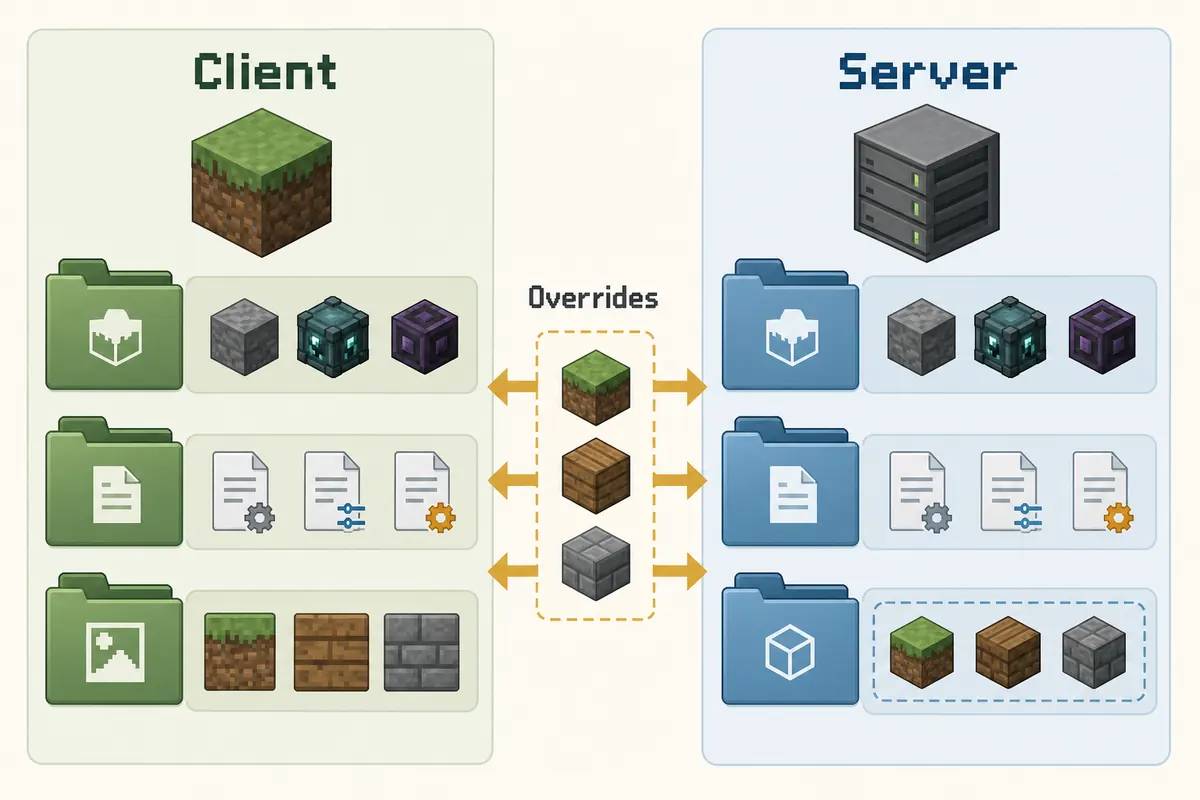
An MRPACK file usually contains modrinth.index.json. That manifest describes dependencies, file paths, hashes, downloads, and environments. The official Modrinth format documentation also explains optional server-overrides and client-overrides folders. For server admins, those names matter. They are not decorative folders; they indicate which files should apply to which side.
If you are using a server-aware installer, it should respect those details. If you are converting and copying files by hand, you must do the review yourself. Start by checking the Minecraft version and loader in the manifest or pack page. Then check whether the converted output includes normal overrides, server overrides, missing download notes, and side-specific mods.
Manual install after converting MRPACK to ZIP
Use this route when your host does not support MRPACK directly. It is also useful when you want to inspect the pack before uploading anything to a production server.
- Convert the MRPACK to ZIP. Use the MRPACK to ZIP converter with a local file, Modrinth project ID, or direct URL.
- Extract into a temporary folder. Do not copy files straight into your live server until you understand the output.
- Install the correct server loader. Match Fabric, Forge, Quilt, or NeoForge and the exact Minecraft version expected by the pack.
- Copy server-safe folders. Move
mods,config, datapacks, and server overrides only after checking what belongs server-side. - Check for missing downloads. If the converter reports blocked or failed files, download the exact versions from official project pages or choose a server-aware installer.
- Launch once and read the logs. Fix loader, dependency, Java, and client-only errors before inviting players.
This path is slower than a native importer, but it is transparent. You can see what is being uploaded, remove obvious client-only extras, and preserve a backup of the original pack before testing.
Docker and automated server installs
If you run Minecraft in Docker, a Modrinth-aware image can be cleaner than manual uploads. The itzg Minecraft server image documents Modrinth modpack support through environment variables, so a container can install the pack and loader during startup. That route is useful for reproducible servers because your configuration can describe the pack source instead of storing a manually assembled folder forever.
TYPE=MODRINTH
MODRINTH_MODPACK=your-pack-slug-or-project-id
VERSION=1.20.1
EULA=TRUE
Treat the snippet as a shape, not a universal production config. Your actual variables depend on the image version, pack requirements, loader, port mapping, memory, volume paths, and host policy. Always read the current image documentation before deploying.
How to handle server-overrides
When a pack includes server-overrides, apply those files after the normal overrides layer. In practical terms, this can add or replace server-specific configs. A common example is a config that should differ between a client instance and a dedicated server. If you skip this folder, the server may boot with client-oriented settings or miss files the pack author intended for server use.
Also look for client-overrides. Those files are meant for the client side. Do not blindly upload them to the server unless you have verified that each file is harmless server-side. Texture packs, shader settings, client UI mods, keybind files, and client performance configs are often irrelevant or risky on a dedicated server.
Client-only files that commonly break servers
The exact list depends on the pack, but the pattern is predictable. Anything designed only for rendering, client UI, audio, local controls, shader management, or single-player convenience should be reviewed before it reaches the server. If the mod page says client-side only, keep it out of the dedicated server unless the author explicitly documents server compatibility.
| File or mod type | Server decision | Reason |
|---|---|---|
| Shader packs and client graphics settings | Usually omit from server upload. | They affect the player's renderer, not server logic. |
| Minimap, HUD, zoom, and visual UI mods | Check the mod page; often client-only. | Dedicated servers do not render the player interface. |
| Gameplay mods with server logic | Install when required by the pack. | Players and server may need the same mod to agree on content and behavior. |
| Config files | Copy deliberately, then compare logs. | Some configs are shared, while others are side-specific. |
Troubleshooting: server will not start
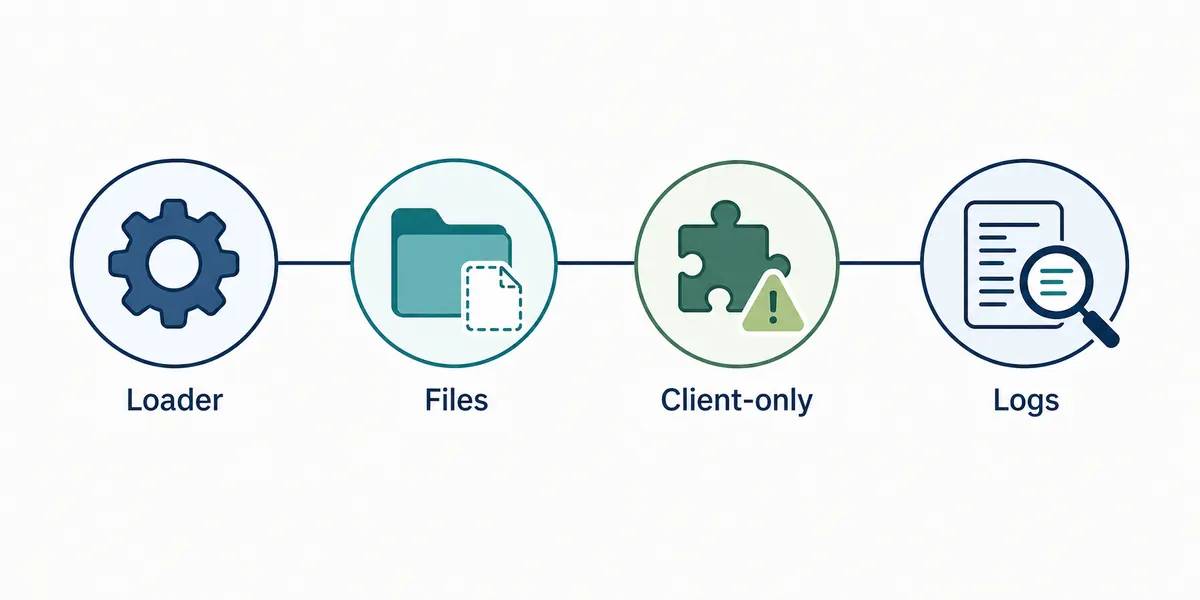
When the first launch fails, resist the urge to replace everything at once. Work through the most likely causes in order. A structured pass usually solves the problem faster than random file copying.
Wrong loader or Minecraft version
A Fabric pack will not become a Forge server because the files are copied into a Forge directory. Match the loader family, loader version when needed, and Minecraft version first. If the pack targets NeoForge or Quilt, make sure your host supports that specific option.
Missing referenced files
Some MRPACK files reference downloads rather than bundling every JAR. If a browser conversion could not fetch a file because of host or CORS restrictions, the output may include a failed-download note. Do not ignore it. The server may crash because the missing file is a dependency.
Client-only mods on the server
If the log mentions classes related to rendering, screens, keybinds, or client initialization, suspect a client-only mod. Remove it only after confirming the mod's side support on its official page. Some mods are required on both sides, so guessing can create a different crash.
Java and memory mismatch
Modern Minecraft versions have specific Java expectations, and modded servers can need more memory than vanilla. If the log points to an unsupported class version, update Java. If the server is killed during startup or stalls during world generation, review memory limits and startup flags.
When ZIP conversion is useful and when it is not
ZIP conversion is useful when you need a file-level view of the pack, a manual upload workflow, or a fallback for hosts that do not accept MRPACK. It is not a magic server pack generator. It cannot decide whether every mod is server-safe, override host limits, or make a client-only pack run as a dedicated server.
If your actual goal is simply to play the pack locally, use the broader MRPACK installation guide. If you need to inspect the package format first, read what an MRPACK file is and the modrinth.index.json guide. If you are trying to move files into CurseForge instead, use the CurseForge import guide.
FAQ
Can I just rename .mrpack to .zip for a server?
You can rename or open it for inspection, but that does not install referenced downloads, apply the right override layer, or remove client-only content. Use a server-aware installer or convert and inspect the ZIP carefully.
Does every Modrinth modpack support servers?
No. Some packs are client-focused, and some include mods or configs that do not belong on a dedicated server. Check the pack page, mod pages, and logs before assuming server compatibility.
What should I upload after conversion?
Upload the server-safe files that match your loader setup: usually mods, configs, datapacks, and server overrides. Do not upload every client setting or shader-related file without review.
Why are there fewer JAR files inside the MRPACK than expected?
That is normal for many MRPACK files. The manifest can list download URLs and hashes instead of storing every JAR directly. A compatible installer resolves those references during install.
Can I use the converted ZIP on a paid host?
Usually yes when the host allows custom server files and the loader is installed correctly. If the host has a Modrinth import option, use that first. If it only accepts uploads, convert, inspect, and test in a clean server directory.
Sources and notes
- Modrinth support: Modpacks on Modrinth for official client-side and server-side tool guidance.
- Modrinth support: MRPACK format for manifest, overrides, server-overrides, and client-overrides behavior.
- itzg/docker-minecraft-server Modrinth modpacks documentation for Docker-based Modrinth pack installation patterns.
- packwiz Modrinth publishing guide for pack export and side-aware modpack context.
Final takeaway
Install an MRPACK on a server by preserving the pack's intent: correct loader, correct Minecraft version, complete referenced files, and proper server-side overrides. If your host supports Modrinth packs, use that route. If it does not, convert to ZIP for inspection, copy deliberately, and let the server log guide each fix.
Need to inspect a server pack first?
Use the browser-based converter to turn a local .mrpack, project ID, or direct URL into a ZIP-style package before uploading files to your Minecraft server.