If you are looking for how to update a Modrinth modpack to a new version, start with a copy of the working instance instead of replacing it in place. Record the current Minecraft version and loader, back up the world and configuration, update the pack's content, then launch the copy before you touch a shared or public version. A small mod update and a Minecraft-version migration are different jobs.
Quick decision: update mods in the Modrinth App's Content tab when the game and loader stay compatible. Use the Installation tab when the target release changes Minecraft or the loader. Export or upload a new MRPACK only when another player, a server, or a public Modrinth project needs the updated pack.
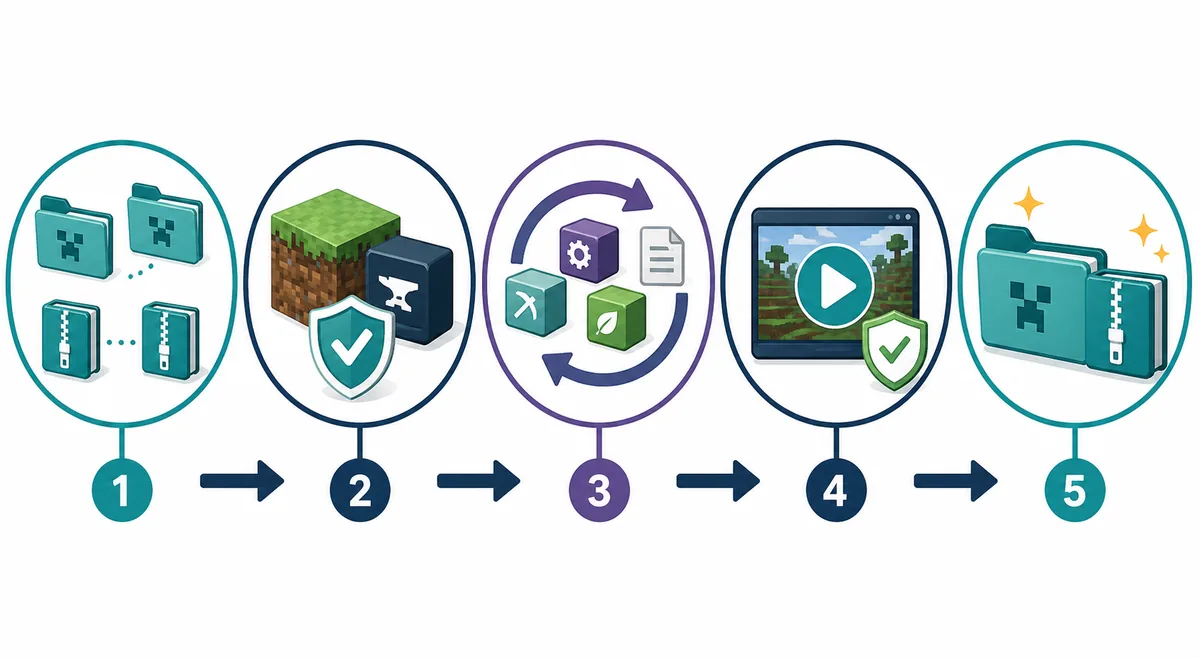
What exactly are you updating?
The word “update” hides three different changes. Decide which one you are making before clicking an update control, because each one has a different failure mode and a different rollback plan.
| Update type | Typical change | What to protect | Best next step |
|---|---|---|---|
| Content-only update | One or more mods, libraries, resource packs, or configs move to compatible releases. | Existing world, configs, dependencies, and the current loader. | Duplicate the instance, update content, launch the copy, and keep the old instance until it passes. |
| Minecraft or loader migration | The target pack moves from one Minecraft version or Fabric, Forge, NeoForge, or Quilt release to another. | Mod compatibility, world format, loader dependencies, and server parity. | Read the target pack notes, make a separate test copy, and treat it as a migration. |
| Published pack update | A pack creator wants friends or the public project to receive a new collection of files. | Manifest, dependencies, file sources, permissions, changelog, and a clean import. | Export a new MRPACK version, test it in a fresh profile, then follow the Modrinth upload guide if it is public. |
Back up the instance before updating
A backup is more than a copy of the .mrpack file. A local instance can contain saves, configs, scripts, resource packs, shader settings, screenshots, and launcher-specific metadata that are not all represented in the downloadable pack. Preserve the parts you would need to return to the last working state.
- Duplicate the instance. Give the copy a clear name such as
Pack Name - update test. Do not use the only working profile as your experiment. - Back up worlds and important folders. Copy
saves/,config/,defaultconfigs/,kubejs/,scripts/, resource packs, shader settings, and any server-side files that the pack actually uses. - Record the baseline. Write down the Minecraft version, loader, Java requirement, pack version, and the mods you plan to change. A short baseline makes it much easier to identify which update caused a crash.
- Keep the old copy until the new one passes. “It launches once” is not the same as “the world is safe.” Load a test world, check the important menus and machines, and keep the rollback copy until you have played long enough to notice missing content.
Do not use a converted ZIP as your only backup. A ZIP made for manual installation may not preserve the complete launcher state or the exact MRPACK manifest. Keep the original instance and, if you maintain the pack, keep the original modrinth.index.json or source project as well.
Update a local Modrinth instance
For a normal local update, first check whether the game version and loader will remain the same. If they do, the change is mostly a content update. If they do not, stop and use the migration path below. Modrinth's official help center documents the distinction between updating content and changing the installed game or loader version in the Installing/updating mod loaders and game versions guide.
1. Update compatible mods from the Content tab
Open the duplicated instance and review the available updates in its Content tab. The current Modrinth App changelog describes an Update all action for content updates, but a bulk action is not a substitute for compatibility review. Read the mod's release notes when it is a major change, a world-generation mod, a library, a performance mod, or a mod that stores data in the world.
Update in small groups when the pack is fragile. If five mods change at once and the test copy crashes, you have to bisect the changes. If the app reports a failed download or rolls the installation back, leave the working copy untouched and resolve the single failed dependency before trying again. Use the official Modrinth Changelog for current behavior and UI wording because the app can change faster than a static tutorial.
2. Change Minecraft or the loader only as a planned migration
When a new pack release requires a different Minecraft version or loader, use the instance's Installation settings instead of treating the change like an ordinary mod update. Check every mod against the target version, including libraries that may not be visible as the main feature of the pack. A Fabric pack moved to Forge is not a simple version bump; it is a different compatibility target.
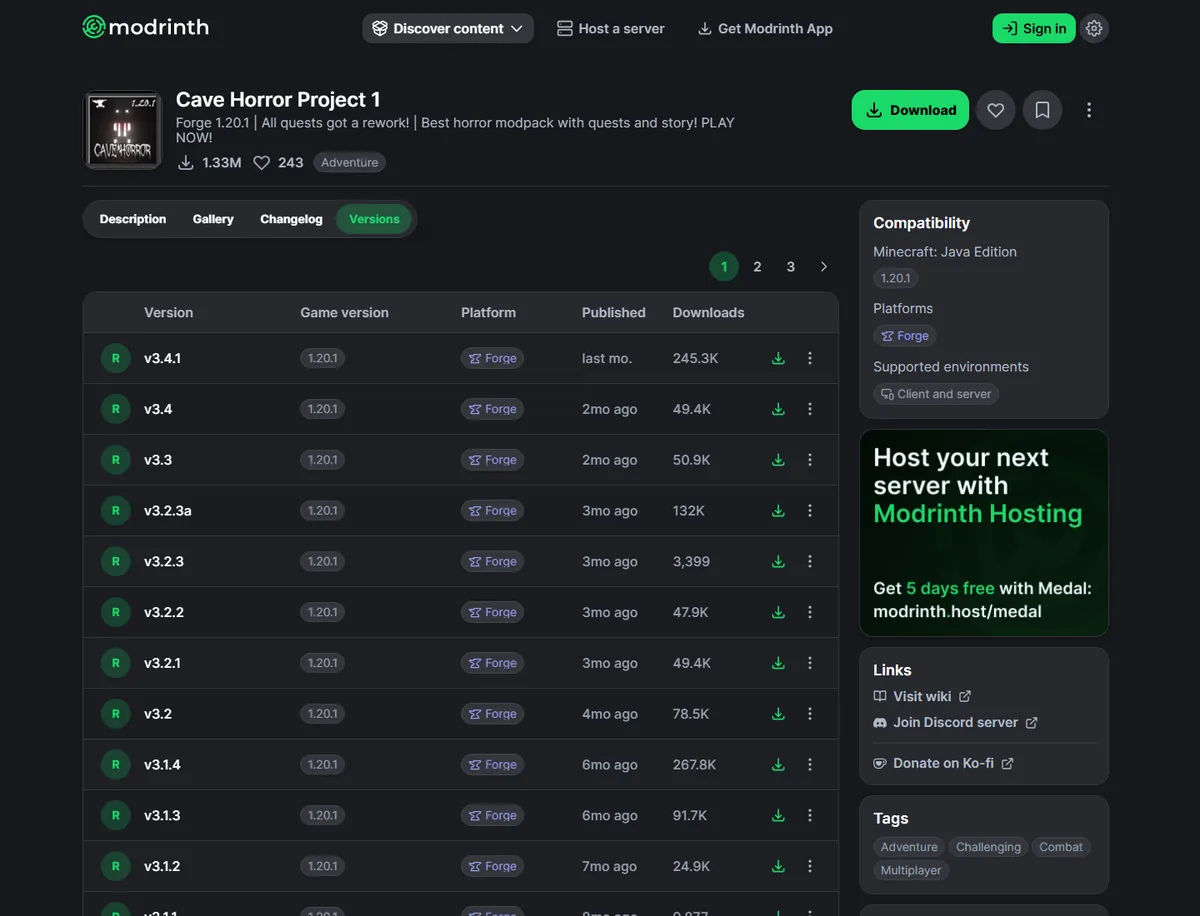
3. Treat incompatible mods as a review list, not an automatic fix
When a mod has no compatible release, you have three honest options: stay on the old pack version, remove or disable the mod in the test copy, or find a supported replacement. Do not silently replace a gameplay-critical mod just to make the launcher show a green status. Record the decision in the pack changelog so a friend or server admin knows why the new version behaves differently.
Move a custom modpack to a new version
A custom pack update is easier to maintain when you separate the source instance from the exported MRPACK. The instance is where you test; the MRPACK is the portable recipe that another launcher rebuilds. Keep both roles clear so a local fix does not accidentally become a public release.
Keep configuration and world data intentional
Before exporting, inspect the folders that carry behavior rather than blindly copying the entire instance. Configs, default configs, scripts, resource packs, and shader settings may be part of the pack. Personal worlds, logs, crash reports, caches, screenshots, authentication data, and launcher metadata usually should not be published as pack contents.
If the update changes world generation, dimensions, registries, or block and item IDs, test a copy with a disposable world first. A successful title screen does not prove that an existing save will load safely. For a server pack, test a clean server instance separately because client-only files can create a different failure mode.
Export a new MRPACK only after the copy passes
When the updated pack is meant for other people, export a new .mrpack with the correct manifest and dependency versions. Do not rename a ZIP and call it an update. The MRPACK format depends on a root modrinth.index.json, declared Minecraft and loader dependencies, file references, hashes, and deliberate overrides. If you need to inspect the result, use this site's MRPACK Reader or the modrinth.index.json field guide before publishing.
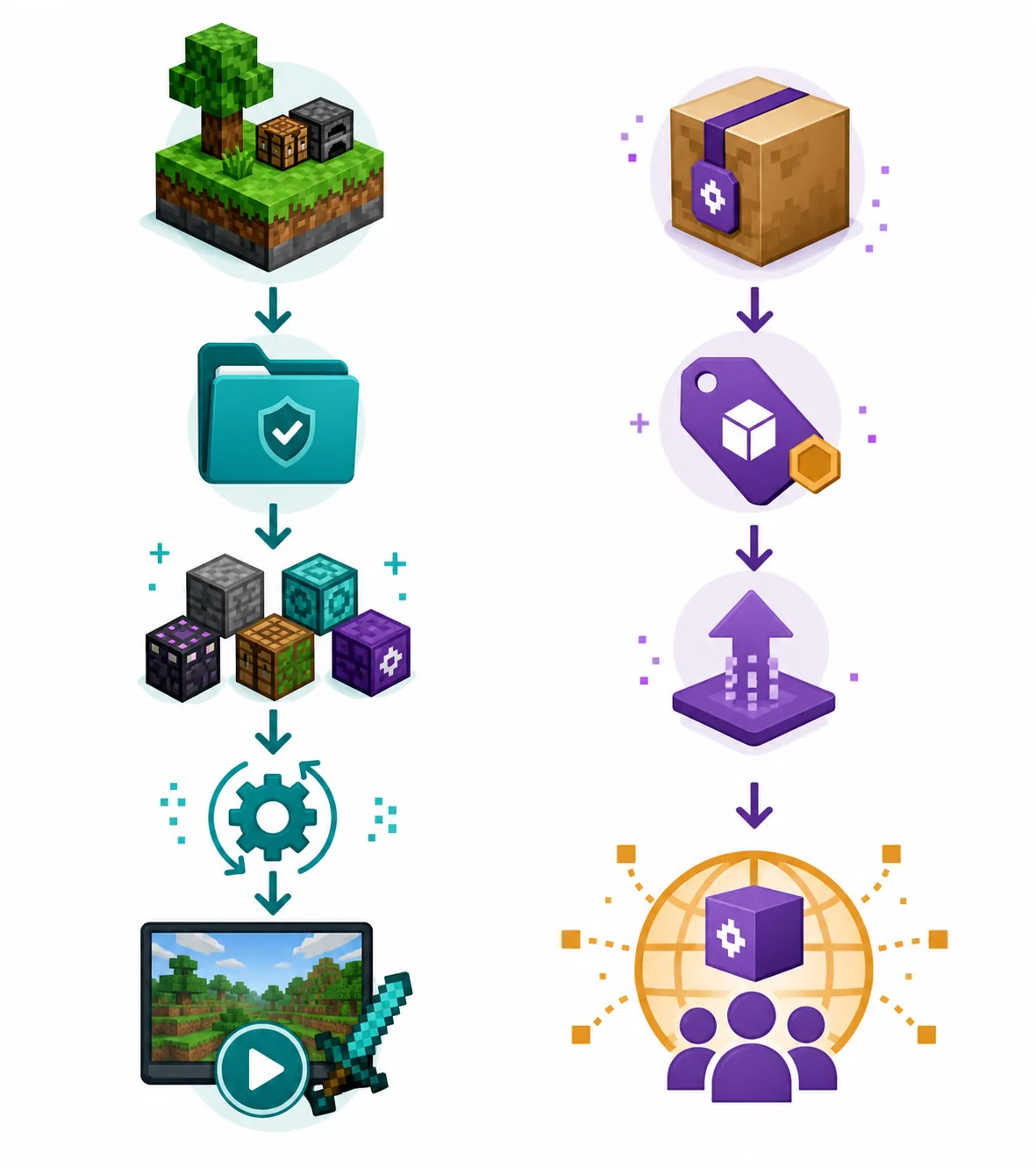
Local update or new published version?
Use this decision table before you create a new upload. It prevents a common mistake: writing a public release guide when the reader only needs to refresh a local instance, or sending a local player through permissions and publishing steps they do not need.
| Goal | New MRPACK needed? | What to verify |
|---|---|---|
| Play the updated pack alone | No | The duplicate instance launches, the world loads, and the important content still works. |
| Send the update to friends | Usually yes | Fresh import, manifest, dependency sources, changelog, and any permissions or redistribution limits. |
| Publish a new Modrinth project version | Yes | New version metadata, clean MRPACK export, external-content checks, and a fresh import test. Continue with the upload and permissions guide. |
| Move an updated pack to a dedicated server | Usually, or use a server-specific file | Client/server file rules, server overrides, Java, loader, backups, and a maintenance-window rollback plan. See the server install guide. |
Update a server copy safely
Do not update the client and server by copying a whole personal .minecraft folder. A server needs the files and loader it can run, while a client may also contain shaders, menus, voice chat, graphics settings, and other client-only content. Start with a server-aware export or a documented server pack, then compare the target Minecraft and loader versions with the client copy.
Before a server update, stop the server cleanly, back up the world and configuration, record the current pack version, and set a maintenance window. Stage the new files in a separate directory if the host allows it. Start the server once, inspect the log for missing dependencies or client-only mods, and keep the old directory until players can connect and the important world systems work.
If the pack is only a client MRPACK, do not assume that converting it to ZIP makes it a valid server pack. Use the Modrinth server-pack guide and server installation guide to decide which files belong on the server.
Common update failures and fixes
The game version changed but the mods did not
Return to the test copy and build a compatibility list. A new Minecraft version can require new loader releases, libraries, APIs, and mod builds. If a key mod has no supported release, staying on the previous pack version is safer than forcing a partial migration.
The pack launches but a world behaves differently
Check the pack changelog and test a disposable world before trusting the existing save. World-generation changes, registry changes, removed blocks, and changed recipes can be more important than whether the title screen opens.
One mod has been disabled or removed
Read the reason shown by the launcher and verify the target version manually. A disabled mod may be incompatible, missing a dependency, or unavailable for the chosen loader. Replace it only when the pack's author or release notes support the replacement.
The new MRPACK imports but is missing configs
Inspect the exported archive and compare its overrides with the working source. Check config/, defaultconfigs/, scripts, resource packs, and any files that the pack intentionally copies. The MRPACK creation guide explains how to separate portable pack files from personal instance clutter.
The public project still shows the old version
A local update does not change a Modrinth project. Create the new project version, upload the tested MRPACK, write a useful changelog, and complete the current permission/review checks. Do not call the local test copy “published” until another user can obtain and import the same version.
FAQ
What does Update all do in a Modrinth modpack?
It updates available content in the instance. It does not prove that every mod, the Minecraft version, the loader, a world, or a server copy is compatible. Review the changes and launch a test copy before replacing the working instance.
Do I need to update Minecraft and the loader too?
Only if the target pack release requires it. A game or loader change should be treated as a migration with a backup, compatibility review, and a separate test profile. If the current pack still works and only a mod has a compatible update, leave the game and loader unchanged.
Can I update a Modrinth modpack without the Modrinth App?
Yes, but manual updating moves the compatibility work onto you. Preserve the manifest and dependencies, keep configs intentional, verify the correct loader, and test a clean import. A launcher with native MRPACK support is usually easier for the first validation pass.
Do I need a new MRPACK after updating a modpack?
Not for a private local update. Export a new MRPACK when friends, a public Modrinth project, or a server need the changed pack. If your goal is simply to inspect a file or install it in a launcher without MRPACK support, use the MRPACK to ZIP converter and keep the original package as a reference.
Should I update the server or the client first?
Test the updated client or pack copy first, then stage the server update with a backup and rollback plan. The server may need a different file set, and client-only mods can prevent a server from starting.
Can I just rename the new MRPACK to ZIP?
No. MRPACK is ZIP-based, but the extension does not turn a normal archive into a valid MRPACK or make a converted archive a complete server pack. Use the conversion guide when you need a manual-install ZIP, and inspect the result before copying files.
Sources and verification
- Modrinth Help Center: Installing/updating mod loaders and game versions — the official reference for the Installation tab and version changes.
- Modrinth Changelog — current app behavior, update controls, and rollback notes can change over time.
- Modrinth Help Center: Modpacks on Modrinth — background on modpack structure and first-party workflows.
- Modrinth Help Center: MRPACK format — manifest, files, downloads, hashes, and overrides.
Need to inspect the updated MRPACK?
Check the manifest, dependencies, downloads, hashes, and overrides before you share the new file.
Open the MRPACK Reader