Quick answer
Open an MRPACK file by importing it into a launcher that understands Modrinth packs. Modrinth App and Prism Launcher are the cleanest choices. If you only need to look inside the file, use an MRPACK reader or a ZIP tool for inspection. If your launcher cannot import MRPACK, use the MRPACK to ZIP converter and install the converted folders deliberately.
What an MRPACK file is before you open it
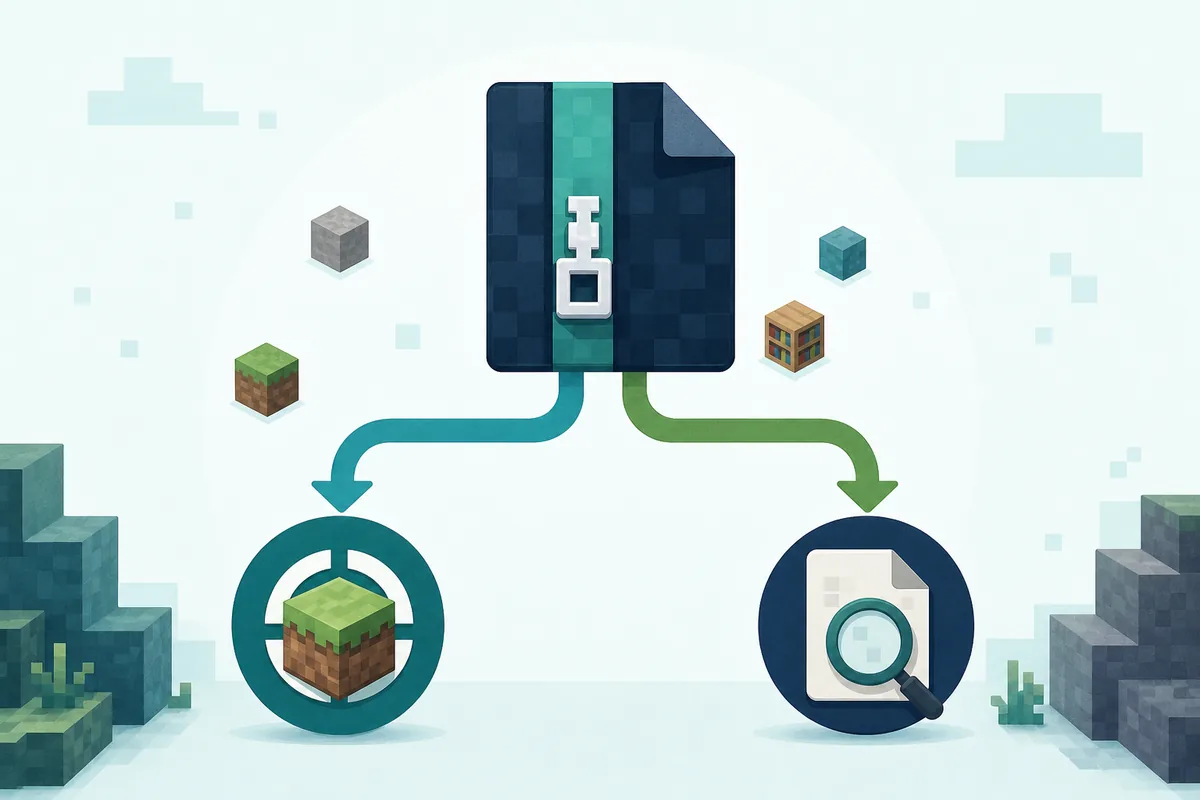
An .mrpack file is a Modrinth modpack archive. It is ZIP-based, but it is not the same as a loose folder of mod JAR files. The official Modrinth MRPACK format documentation defines a root modrinth.index.json manifest that describes dependencies, download URLs, hashes, override folders, and client/server rules.
That manifest is why opening the file with the wrong app can be confusing. A ZIP utility can show you the manifest and override folders, but it does not automatically download every referenced mod file or create a playable Minecraft instance. A launcher import flow reads the manifest, downloads files, installs the right loader, and creates a separate instance.
Best way to open MRPACK files by goal
Start with what you are trying to do. The same file can be opened in different ways depending on whether you want to play, inspect, convert, or prepare a server.
The phrase “open MRPACK file” can mean three different jobs: import the pack into a launcher, unzip the archive to inspect its contents, or resolve its manifest into files for manual use. Choosing the wrong action explains most reports of missing mods or an archive that looks incomplete.
| Goal | Best opener | Use this when | Avoid this mistake |
|---|---|---|---|
| Play the pack | Modrinth App or Prism Launcher | You want a normal Minecraft instance with the correct loader and downloads. | Do not drag the raw MRPACK into .minecraft/mods. |
| Inspect the manifest | MRPACK Reader | You want to view dependencies, file paths, hashes, hosts, and environment rules before installing. | Do not edit the manifest unless you understand hashes and download paths. |
| Look inside the archive | 7-Zip, WinRAR, or another ZIP utility | You only need to see modrinth.index.json or override folders. |
Do not assume visible files are the whole pack. |
| Use a launcher without MRPACK support | MRPACK to ZIP converter | You need a ZIP output for manual install, TLauncher, a server host, or file review. | Do not rename the file and call it converted. |
| Prepare a dedicated server | Server-aware workflow plus manifest inspection | You need to separate server files from client-only mods and overrides. | Do not copy client-only folders blindly. |
Open MRPACK with Modrinth App
Use Modrinth App when you want the most native path. The Modrinth help center points players toward the Modrinth App for downloading and playing Modrinth modpacks. In practice, you keep the .mrpack file in a normal folder such as Downloads, then use the app's import or create-from-file flow to make a new instance.
- Download the
.mrpackfile from Modrinth or another trusted source. - Open Modrinth App and choose the option to create or import an instance.
- Select the
.mrpackfile when prompted. - Let the app read the manifest, fetch referenced files, and install the required loader.
- Launch the new instance after checking the Minecraft version and loader.
Do not merge an unknown MRPACK into an existing instance unless the pack author explicitly tells you to. Most MRPACK files describe a complete instance state, not a handful of optional mods.
Open MRPACK with Prism Launcher
Prism Launcher is a strong option when you want an open-source launcher or need a fallback for Modrinth App. Prism Launcher documentation says its import flow can import modpacks from a ZIP file, including MRPACK, from either a website URL or local filesystem. That makes it a good answer for searches like "prism launcher mrpack" and "how to open mrpack file without Modrinth App."
- Open Prism Launcher and choose the add/import instance flow.
- Select the local
.mrpackfile or paste a direct MRPACK URL if Prism offers that path. - Confirm the instance name and group.
- Wait for dependency and file downloads to complete.
- Before launching, confirm Java, memory, Minecraft version, and loader settings.
If Prism rejects the archive, check whether the download is complete and whether the manifest is at the archive root. A corrupted download, renamed non-MRPACK archive, or private download URL can produce an import error.
Can you open MRPACK with 7-Zip, WinRAR, or Finder?
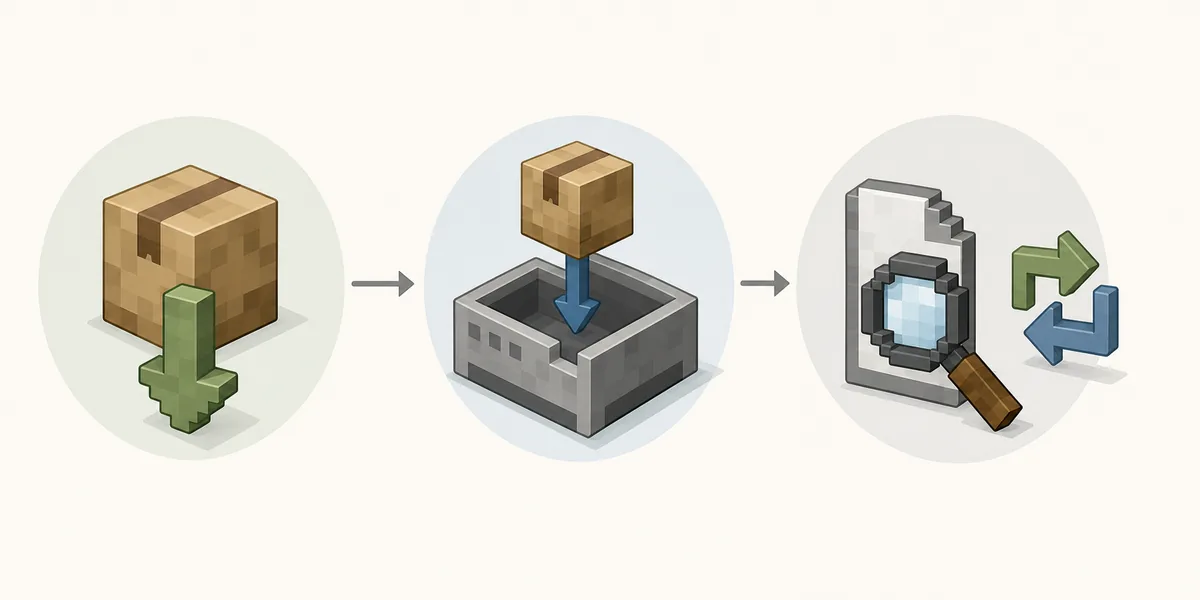
Often, yes, for inspection. Since MRPACK is ZIP-based, archive tools can usually open it after you choose the file manually, associate the extension, or temporarily inspect it as a ZIP archive. This is useful when you want to read modrinth.index.json, check override folders, or confirm that the downloaded file is not empty.
That does not mean the file is installed. The manifest can reference remote mod JAR downloads that are not physically stored in the archive. If you only extract what you can see, the final Minecraft folder may be incomplete. Use the MRPACK Reader when you want a safer, more focused manifest view without guessing which JSON fields matter.
Windows example: right-clicking an MRPACK and choosing 7-Zip can show modrinth.index.json, but it does not perform the launcher's download step. macOS example: changing a copy of the extension to .zip may let Archive Utility inspect the package, but the extracted folder is still not a complete installed instance unless the referenced files are present.
When opening is not enough: convert MRPACK to ZIP
Convert instead of directly opening when your target workflow needs a normal ZIP output. This includes manual installs, some TLauncher workflows, server preparation, file inspection for hosting, or a launcher that does not support Modrinth pack import. The homepage converter accepts a Modrinth project ID, a direct MRPACK URL, or a local file upload.
Conversion is different from renaming. A real converter reads the manifest, resolves files into a ZIP-style output, keeps overrides visible, and reports downloads that the browser could not fetch. If your real goal is a manual install after conversion, follow the MRPACK installation guide. If your goal is a dedicated server, use the server install checklist.
MRPACK opening paths compared
| Method | Creates a playable instance? | Shows manifest details? | Best for |
|---|---|---|---|
| Modrinth App import | Yes | Limited user-facing detail | Players who just want to play the pack. |
| Prism Launcher import | Yes | Some instance-level detail | Players who want more launcher control. |
| MRPACK Reader | No | Yes | Checking dependencies, file paths, hosts, hashes, and environment rules. |
| ZIP utility | No | Only if you read the JSON yourself | Quick archive inspection and checking override folders. |
| MRPACK to ZIP conversion | No, but prepares files for manual install | Some conversion output details | Manual installs, server preparation, unsupported launchers, and troubleshooting. |
Common "cannot open MRPACK" errors
The file does not appear in the file picker
You may be using a picker that only accepts JAR, ZIP, or CurseForge profile files. Switch to a Modrinth-compatible import path, or choose "all files" if the launcher supports MRPACK but filters the extension poorly.
The launcher says the archive is invalid
Download the file again and confirm that it is not zero bytes. Then inspect the archive root for modrinth.index.json. If the file was renamed from another archive type, it may not be a valid MRPACK at all.
The pack imports but crashes on launch
This is usually not an "open file" problem anymore. Check the Minecraft version, loader type, loader version, Java version, and missing dependencies. A Fabric pack opened in a Forge profile, or a 1.21 pack opened in a 1.20 instance, can fail immediately.
The pack works locally but fails on a server
Server setup has extra constraints. Check client-only mods, server overrides, resource packs, shader packs, and environment rules before uploading files. The MRPACK manifest can mark files as client-only or server-only, so inspect it instead of copying everything blindly.
CurseForge refuses the MRPACK file
CurseForge documents ZIP/profile import workflows, not raw Modrinth MRPACK import as a general solution. Use the MRPACK to CurseForge guide for the safer path: convert, inspect, and only then try a compatible manual workflow.
What to check before trusting an MRPACK file
MRPACK files can describe many downloads and overrides, so treat unknown packs cautiously. Use trusted sources, inspect the manifest, and avoid running packs from random file shares unless you understand what they reference.
- Source: Prefer official Modrinth pages, known pack authors, or private shares you actually trust.
- Dependencies: Confirm Minecraft version, loader type, and loader version before importing.
- Download hosts: Review whether files come from Modrinth CDN, GitHub, CurseForge, or unrelated hosts.
- Environment rules: Look for client-only and server-only files before manual server setup.
- Overrides: Configs and resource packs can change gameplay, controls, performance, and server behavior.
FAQ
How do I unzip an MRPACK file?
Open it directly with an archive manager or temporarily copy it and rename the copy from .mrpack to .zip. Use this only for inspection; install with a compatible launcher when you need all referenced mod files.
Why does an unzipped MRPACK look incomplete?
The manifest can point to remote downloads instead of storing every JAR in the archive. The launcher or converter must resolve those references before the pack resembles a complete Minecraft instance.
What program opens MRPACK files?
Modrinth App and Prism Launcher are the most practical programs for typical players. Archive tools can inspect the file, and this site's MRPACK Reader can view the manifest, but a launcher is required for a normal playable instance.
Can Windows open MRPACK files by default?
Not usually. Windows may not know the extension. Install or use a compatible launcher, or open the file with a ZIP utility only when you want to inspect the archive.
Can I put MRPACK files in the mods folder?
No. The mods folder expects individual mod JAR files. Put the raw MRPACK somewhere temporary, import it through a supported launcher, or convert it and then copy the extracted folders into the correct profile.
Is MRPACK the same as ZIP?
It is ZIP-based, but the important part is the Modrinth manifest. Treating it as a plain ZIP can help inspection, but it does not replace launcher import or conversion.
How do I open MRPACK without Modrinth App?
Use Prism Launcher if you want direct import. Use the MRPACK Reader for inspection. Use the converter if your destination requires a ZIP-style output.
Why are some files missing when I open the archive?
That can be normal. MRPACK manifests often reference remote downloads rather than storing every mod JAR inside the archive. A launcher or converter must fetch those files.
Can I open MRPACK on a phone?
You can inspect the archive or manifest with some mobile file tools, but normal Minecraft Java modpack installation is a desktop workflow. Use a desktop launcher for actual play.
Should I convert MRPACK before opening it?
No, not if your launcher supports MRPACK. Import directly for play. Convert only when you need manual files, server preparation, unsupported launcher workflows, or ZIP inspection.
Final takeaway
The best way to open an MRPACK file is not one universal app. Use a compatible launcher when you want to play, a reader when you want to inspect the manifest, and conversion when you need a ZIP output for manual workflows. The one thing you should not do is drop the raw .mrpack file into mods and expect Minecraft to understand it.
Need to inspect before opening?
Use the local MRPACK Reader to check the manifest before you import, convert, or copy files into a launcher profile.
Open MRPACK Reader