Quick answer
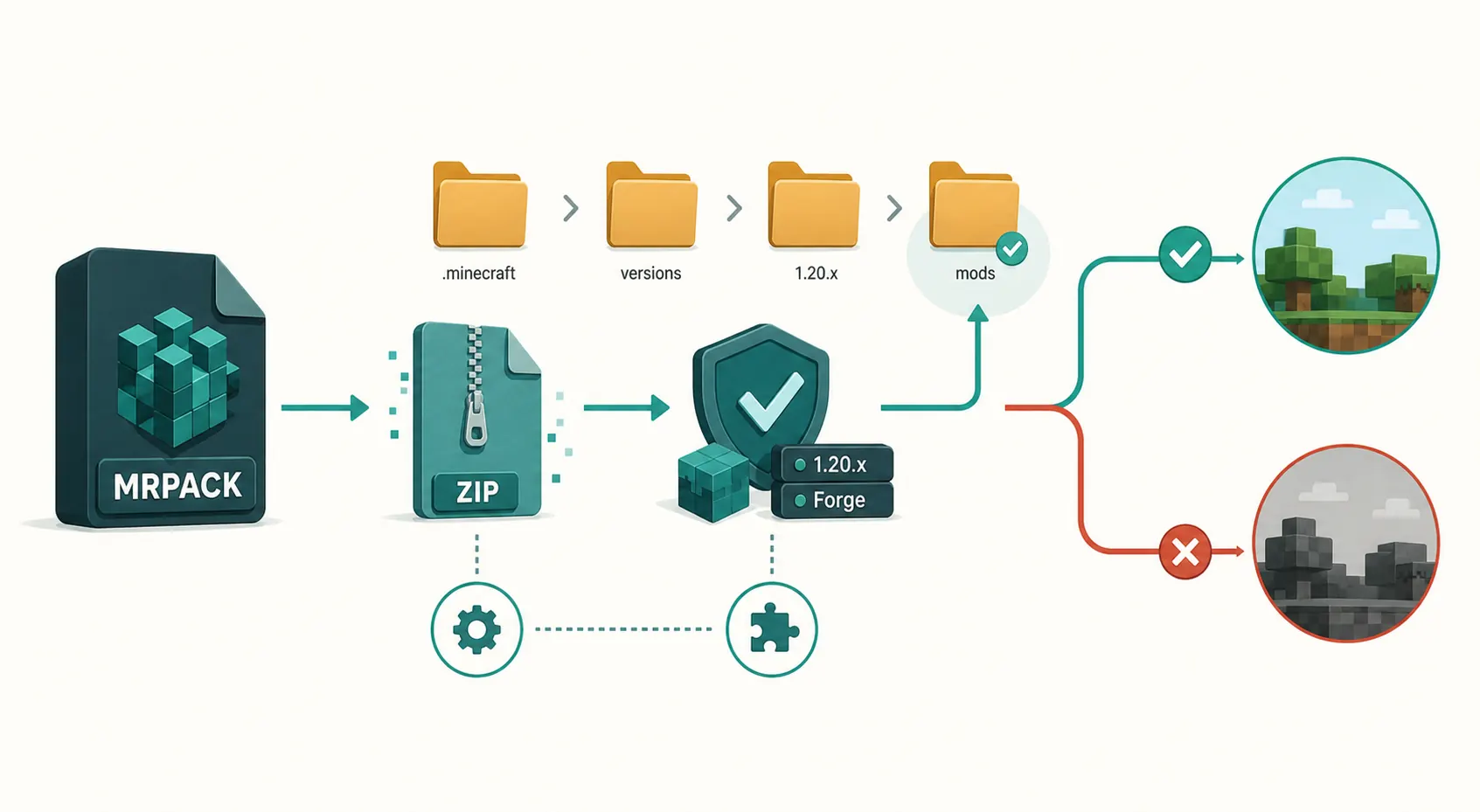
Do not put a raw .mrpack file into TLauncher's mods folder. TLauncher's normal mod workflow expects individual mod files and matching Forge/Fabric versions, while a Modrinth MRPACK is a manifest-driven modpack. The safer path is to convert the MRPACK to ZIP, create a clean TLauncher profile with the same Minecraft version and loader, then copy the converted folders into that profile.
Why TLauncher and MRPACK are easy to confuse
TLauncher has mod and mod-pack features, but that does not mean every external modpack format can be dropped into the same folder. TLauncher's own mod installation guide describes choosing a Forge version that matches the mod, opening the Minecraft folder, and placing downloaded .jar or .zip mod files into mods. Its TL Mods article also describes a launcher-specific mod-pack system with install, create, manual installation, and backup features.
A Modrinth .mrpack file is different. Modrinth's format documentation explains that an MRPACK is stored as a ZIP using the .mrpack extension, with the main metadata stored as UTF-8 modrinth.index.json at the archive root. That manifest lists file paths, hashes, downloads, dependencies, and override folders. In other words, the file is a recipe for a compatible launcher or converter, not a single mod.
Should you create a new TLauncher profile first?
Yes. Treat the pack as a complete profile, not a handful of loose mods. Creating a clean profile prevents old configs, old libraries, and leftover mods from hiding the real problem. If the MRPACK says Minecraft 1.20.1 with Fabric, do not install it into an old Forge 1.19.2 profile. If it says Forge, do not try to run it with Fabric because the folder names happen to look similar.
Use the pack's manifest or the Modrinth project page to identify three things before touching TLauncher: Minecraft version, loader family, and whether the pack is meant for client play, server hosting, or both. If you are not sure what the manifest says, inspect the file with the MRPACK Reader before converting.
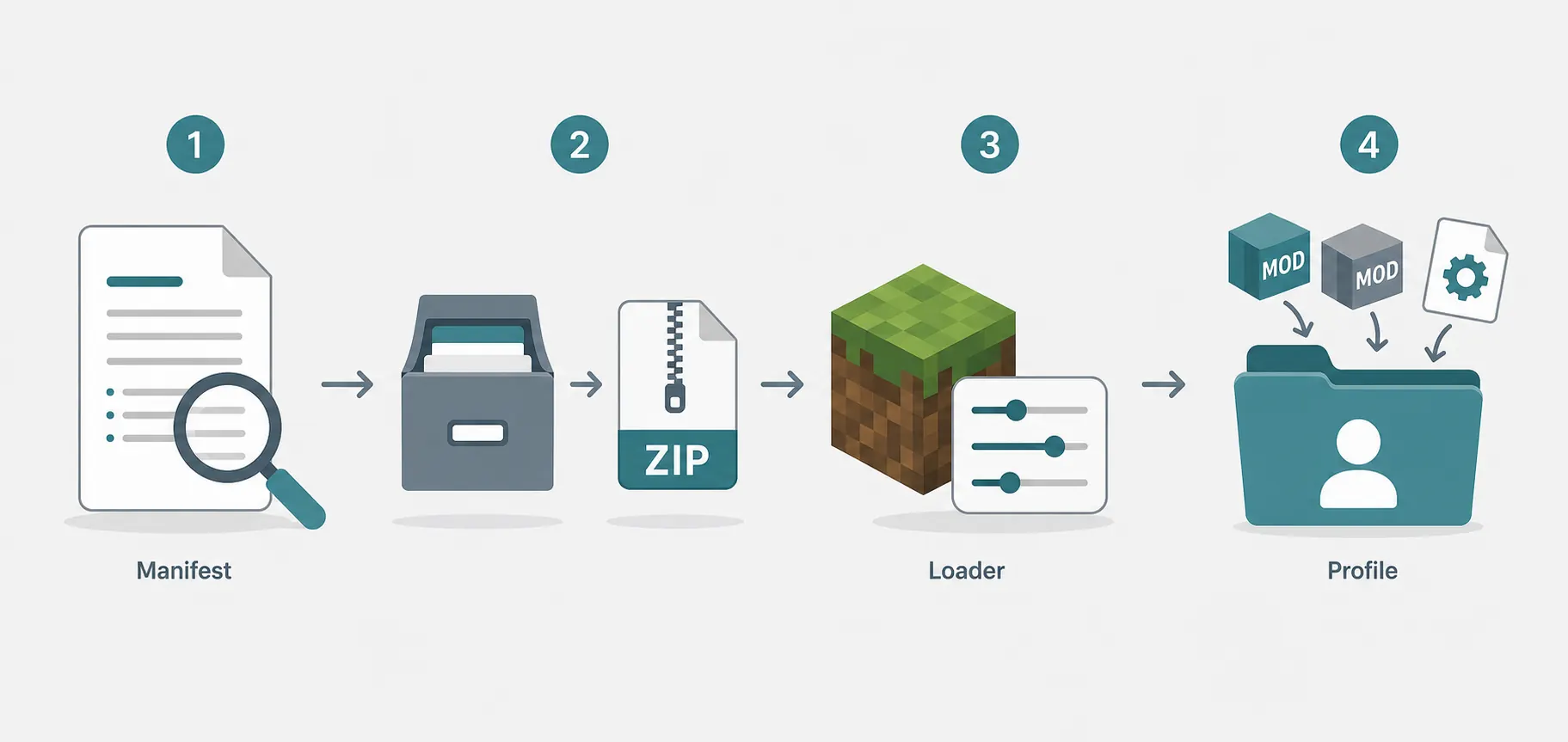
Safe workflow: convert MRPACK to ZIP, then install
This is the practical route when TLauncher is your target launcher and you already have a Modrinth pack file.
- Open the MRPACK to ZIP converter.
- Choose the local
.mrpackfile, paste a direct MRPACK URL, or enter a Modrinth project ID. - Download the generated ZIP and extract it into a temporary folder first.
- Check the pack's Minecraft version and loader requirement. Create a matching clean profile in TLauncher.
- Copy the converted
mods,config,resourcepacks,shaderpacks, and other override folders into that profile's Minecraft directory. - Launch once, then read the log if Minecraft closes, freezes, or reports missing dependencies.
What to copy after conversion
After conversion, do not copy the outer ZIP file into mods. Extract it and copy the relevant folders. A converted pack commonly includes mods for mod JARs, config for settings, resourcepacks, shaderpacks, and other files originally stored as MRPACK overrides. The exact folders depend on the pack.
| Converted item | Where it usually goes | Why it matters |
|---|---|---|
mods |
The profile's mods folder. |
Contains the mod JAR files that Forge, Fabric, Quilt, or NeoForge loads. |
config |
The profile's config folder. |
Many packs rely on config values. Skipping them can change balance or crash startup. |
resourcepacks and shaderpacks |
Matching profile folders. | Visual packs may be optional, but some modpacks expect them for the intended experience. |
| Other override files | The profile root unless the folder path says otherwise. | MRPACK overrides are copied into the Minecraft instance directory by compatible launchers. |
Do not skip blocked or failed downloads
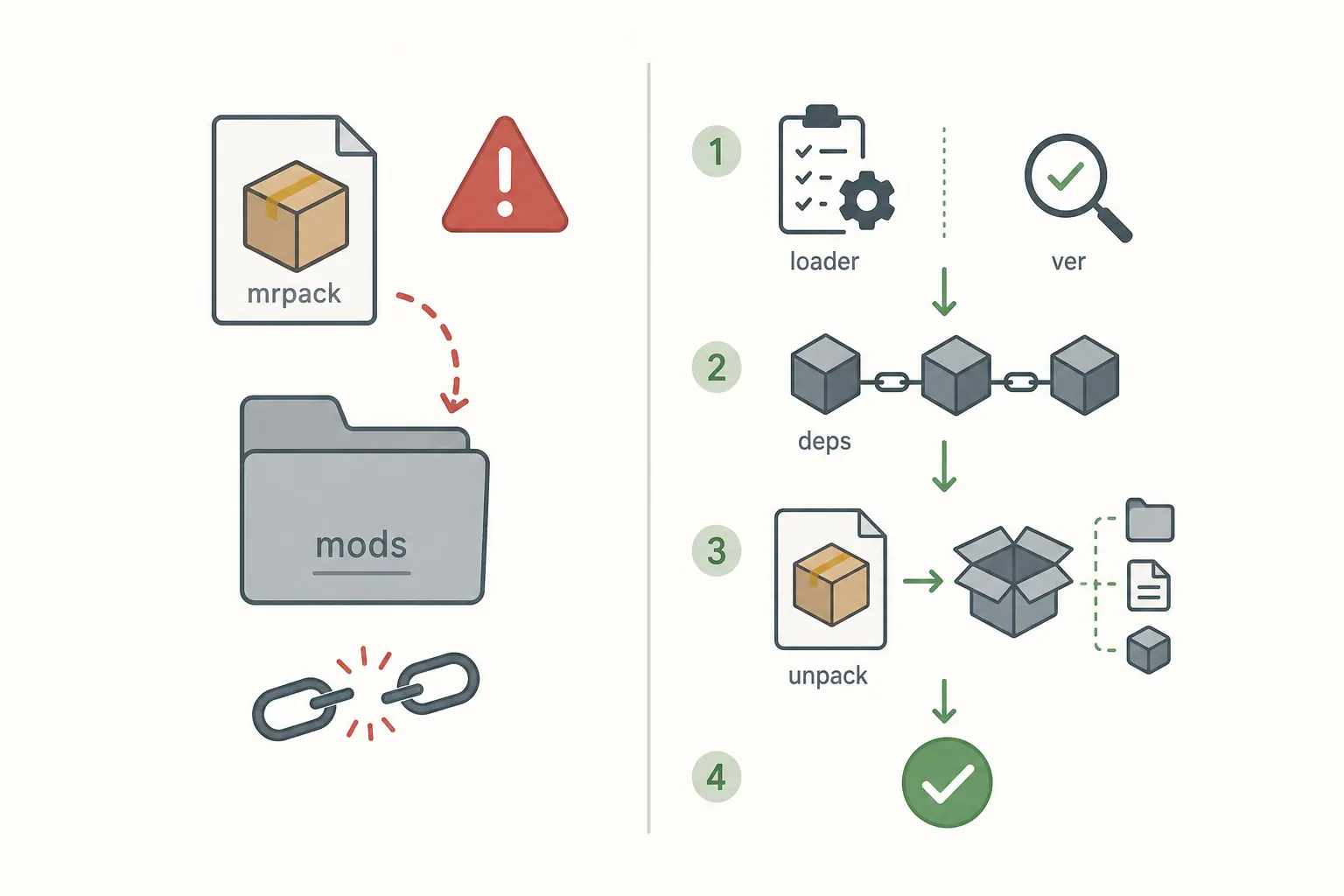
Some MRPACK files reference download URLs instead of bundling every mod JAR inside the archive. If the converter reports failed downloads, the pack may be incomplete until you manually fetch those exact files from the official mod page or another trusted source. This is especially important for mods hosted outside Modrinth, where browser security rules or source-host restrictions can block automatic download.
Missing one dependency can look like a TLauncher problem even when the real issue is an incomplete converted folder. Check the failed-download list, file names, and target paths before you start deleting random mods.
TLauncher-specific mistakes to avoid
Putting the raw .mrpack file in mods
This is the most common mistake. The mods folder loads mod files, not a Modrinth pack manifest. A raw MRPACK file belongs in a compatible importer or converter, not in the final runtime folder.
Mixing the pack into an old profile
Old profiles often contain previous mods, configs, and loader versions. If you merge a converted MRPACK into one of those profiles, any crash log becomes harder to trust. Create a clean profile first, confirm the pack launches, then customize it if you need to.
Using the wrong loader
Forge, Fabric, Quilt, and NeoForge are not interchangeable. If the pack's manifest asks for Fabric, installing a Forge profile in TLauncher will not make Fabric mods work. Check the dependency fields in modrinth.index.json or use the modrinth.index.json guide to understand what the pack expects.
Copying only mods and ignoring config
Many modpacks are more than a mod list. Config files can control world generation, keybindings, performance settings, recipe changes, and compatibility patches. If a converted pack includes config or override folders, copy them into the profile unless you are deliberately customizing the pack.
When another launcher is the better answer
If your only goal is to play a Modrinth pack exactly as the author shipped it, a launcher with native MRPACK support is usually easier. The general MRPACK installation guide explains Modrinth App and Prism Launcher flows. TLauncher is more reasonable when you specifically want to keep using its profile system, already understand manual mod installation, or need to test a converted ZIP workflow.
For server use, do not follow a client-only TLauncher workflow. Read the install MRPACK on a Minecraft server guide instead, because server installs must account for client-only mods, server-overrides, and hosting-specific file placement.
Quick troubleshooting checklist
- Confirm the raw
.mrpackwas converted before copying files into TLauncher. - Use a clean profile with the same Minecraft version as the pack.
- Install the same loader family and close loader version when possible.
- Copy
mods,config, and override folders, not only individual JARs. - Review failed-download notes from the converter and download missing files manually from trusted pages.
- Check the latest log for the first missing dependency or wrong-loader message instead of guessing.
Sources and format notes
This guide uses the official Modrinth MRPACK format documentation for how modrinth.index.json, file paths, downloads, dependencies, and overrides work. It also cross-checks TLauncher's own public pages for manual mod installation, TL Mods mod-pack features, and its note that Forge/Fabric support is installed through version selection on the TLauncher homepage.
FAQ
Can TLauncher open .mrpack files like Modrinth App?
Do not rely on that. Use a launcher with native MRPACK support for direct import, or convert the MRPACK to ZIP and install the converted folders into TLauncher manually.
Can I rename .mrpack to .zip for TLauncher?
Renaming may let you inspect the archive, but it does not download referenced mod files or apply the manifest correctly. Use a real conversion workflow instead.
Do I need Forge or Fabric for a converted MRPACK?
Use whatever loader the pack requires. Check modrinth.index.json or the Modrinth project page. Installing the wrong loader is one of the fastest ways to crash at startup.
Where is the TLauncher Minecraft folder?
TLauncher's guide describes opening the Minecraft folder from the launcher or using the default .minecraft path when it has not been changed. If you use custom paths or separate profiles, open the exact folder for the profile you created.
Is this the same as ZIP to MRPACK?
No. This page is about using an existing MRPACK in TLauncher by converting it to a usable ZIP workflow. The reverse job, creating a valid MRPACK from a normal ZIP, is covered in the ZIP to MRPACK guide.
Final takeaway
For TLauncher, think of MRPACK as an install recipe that must be converted or interpreted before use. Convert the pack to ZIP, create a clean matching profile, copy all relevant folders, and read the log if anything fails. That is safer than dropping a raw .mrpack into mods and hoping the launcher treats it as a normal mod.
Need a ZIP before using TLauncher?
Convert the MRPACK in your browser, then install the output into a clean matching profile.
Open MRPACK to ZIP Converter