modrinth.index.json is the manifest file that makes an MRPACK archive work. It tells a Modrinth-compatible launcher or converter what the pack is called, which Minecraft and loader versions it needs, which files belong in the instance, where missing files should be downloaded, how those files are verified, and whether each file belongs on the client, server, or both.
If you open an .mrpack file and only see a manifest plus a few folders, nothing is necessarily missing. The manifest can point to remote mod downloads, so the complete playable instance is assembled after the launcher or converter reads modrinth.index.json. To inspect those fields without converting the pack, use the MRPACK Reader.
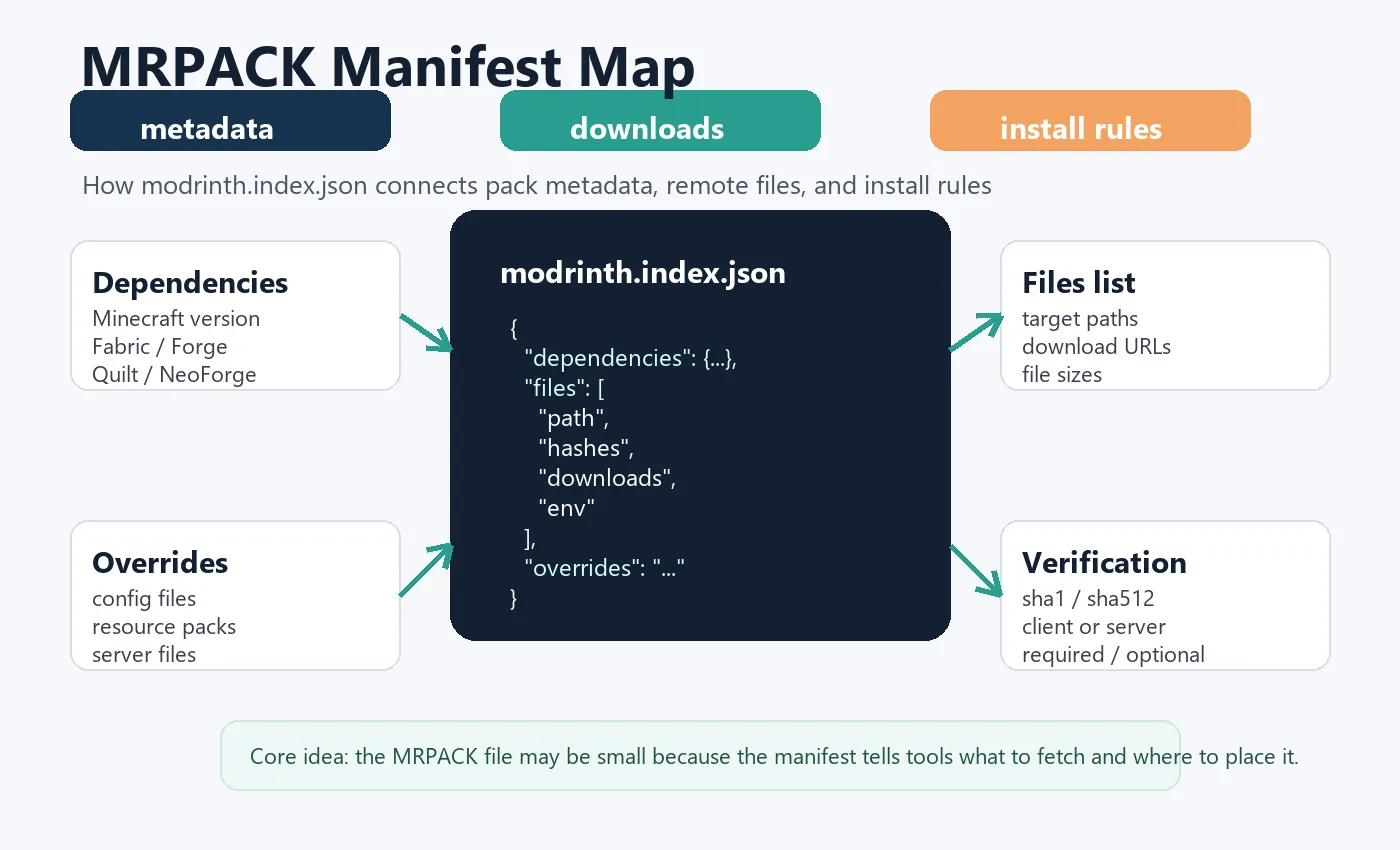
What modrinth.index.json does inside an MRPACK file
Modrinth's official MRPACK documentation defines the format as a ZIP-based modpack archive with modrinth.index.json at the root. That one JSON file is the contract between the pack author and the tool that installs the pack. Without it, a normal archive is just a folder of files; with it, a launcher can determine the required game version, loader, file paths, download URLs, and verification hashes.
This is why modrinth.index.json matters for both players and maintainers. Players use it indirectly when a launcher imports the pack. Server admins inspect it to identify client-only files, server overrides, and required dependencies; the MRPACK server installation guide explains the practical upload and troubleshooting workflow. Pack maintainers rely on it to distribute a clean MRPACK without bundling every mod JAR directly.
Core fields in modrinth.index.json
| Field | Purpose | What to check when troubleshooting |
|---|---|---|
formatVersion |
Identifies the manifest format version expected by compatible tools. | Older or custom tooling may fail if it only supports a different manifest version. |
game |
Names the game the pack targets, normally minecraft. |
A wrong or missing value can make a generic importer reject the archive. |
name, versionId, summary |
Describe the pack and the specific release represented by the archive. | These fields help distinguish an old download from the current pack version. |
dependencies |
Lists required Minecraft and loader versions such as Fabric, Forge, Quilt, or NeoForge. | Most launch failures start here: wrong Minecraft version, wrong loader, or missing loader. |
files |
Lists files that should be placed into the instance, usually with paths, hashes, and downloads. | Check paths, hash values, download URLs, and environment rules for each file. |
path |
Defines where a downloaded file should land, such as mods/example.jar. |
Paths should be relative and should not point to unsafe or unexpected locations. |
hashes |
Lets the installer verify that downloaded files match the expected content. | A hash mismatch usually means the file changed, the URL returned the wrong file, or the download was corrupted. |
downloads |
Provides one or more URLs where a listed file can be fetched. | Broken, blocked, or third-party URLs can cause incomplete installs or failed browser conversions. |
env |
Marks whether a file is required, optional, or unsupported on client and server. | Server crashes often come from copying client-only mods into a dedicated server folder. |
A practical modrinth.index.json example
The exact manifest varies by pack, but the shape below is enough to understand the important relationships. The dependencies define the instance, while each file entry explains what to download, where to put it, and how to verify it.
{
  "formatVersion": 1,
  "game": "minecraft",
  "name": "Example Modpack",
  "versionId": "1.0.0",
  "summary": "A small example pack",
  "files": [
    {
      "path": "mods/example-mod.jar",
      "hashes": {
        "sha1": "example-sha1-value",
        "sha512": "example-sha512-value"
      },
      "downloads": [
        "https://cdn.modrinth.com/data/example/version/example-mod.jar"
      ],
      "fileSize": 123456,
      "env": {
        "client": "required",
        "server": "unsupported"
      }
    }
  ],
  "dependencies": {
    "minecraft": "1.21.1",
    "fabric-loader": "0.16.0"
  }
}
How files, hashes, and downloads work together
The files array is usually the most important part of the manifest when a conversion or install seems incomplete. Each entry can describe a mod JAR or another pack file. The path tells the installer where the file belongs. The downloads list tells it where to fetch the file. The hashes object tells it how to confirm that the downloaded content is the intended file.
That design keeps MRPACK files small, but it also means a converted ZIP can fail to include every JAR if a browser, network, CDN, or third-party file host blocks a download. A good converter should report those failures clearly. If you are using this site's MRPACK to ZIP converter, failed remote downloads are surfaced so you know which files need manual attention.
Dependencies: Minecraft, Fabric, Forge, Quilt, and NeoForge
The dependencies object is the fastest way to understand what kind of instance the pack expects. It normally includes a Minecraft version and one loader. A Fabric pack should not be dropped into a Forge profile just because the JAR files look similar. A pack built for Minecraft 1.21.1 can fail on 1.20.1 even when some mods share names across versions.
For manual installation, write down the dependency values before moving files. Then create or select a matching launcher profile. If the manifest says fabric-loader, use Fabric. If it says forge, use Forge. If the pack uses Quilt or NeoForge, make sure your launcher and server workflow support that loader before copying anything.
Overrides, client-overrides, and server-overrides
Not everything in an MRPACK file is downloaded from remote URLs. The archive can include override folders that should be copied into the final instance. These folders often contain configuration, resource packs, shader packs, default options, scripts, or server files. Ignoring them can create a pack that technically launches but behaves differently from the author's intended setup.
| Folder | Typical contents | Install note |
|---|---|---|
overrides |
Shared config, resource packs, shader packs, options, kubejs scripts, or default files. | Copy into the instance root after the launcher or converter builds the pack. |
client-overrides |
Client-side settings, resource packs, shaders, or visual configuration. | Use for player instances; do not blindly copy to dedicated servers. |
server-overrides |
Server config, scripts, or files intended for dedicated server setup. | Use when preparing a server, then still check loader and environment rules. |
How to inspect modrinth.index.json safely
- Make a copy of the MRPACK file first. Keep the original archive unchanged so you can retry the import if your inspection tool modifies anything.
- Open the archive with a ZIP tool. Because MRPACK is ZIP-based, tools such as 7-Zip can usually show the root files.
- Extract only
modrinth.index.json. Open it in a text editor that handles JSON cleanly. - Check dependencies before files. Confirm the Minecraft version and loader before deciding whether a manual workflow makes sense.
- Review
filesentries for paths and environment rules. Client/server mismatches are common in manual installs. - Do not edit hashes casually. Hashes are there to protect correctness. If a file changed, regenerate the pack through a proper tool instead of hiding the mismatch.
Common manifest problems and fixes
The MRPACK imports but the pack crashes
Start with dependencies. Make sure the instance uses the exact Minecraft and loader versions expected by the manifest. Then inspect env values inside files. A file marked unsupported on the server should not be present in a dedicated server install.
The converter reports failed downloads
Look at the affected file entries. Some download URLs are hosted outside Modrinth and may be blocked by browser security rules, file-hosting permissions, or expired links. When that happens, download the missing file from its official project page and place it at the path listed in the manifest.
A hash mismatch appears
A hash mismatch means the downloaded content does not match the manifest's expected value. Do not ignore it for a public or shared pack. Retry the download, confirm the URL, and check whether the mod file was updated upstream. Pack maintainers should regenerate the MRPACK so hashes and file sizes are consistent.
The manifest is not at the archive root
A valid MRPACK should have modrinth.index.json at the root of the archive. If the file is nested inside another folder, an importer may not recognize the pack. Re-export the pack with a proper Modrinth-compatible workflow instead of manually zipping the wrong directory level.
When to edit the manifest and when to rebuild the pack
For private debugging, you can open the manifest to understand what a pack is trying to do. You might temporarily remove a client-only file from a server experiment or compare two versions of a manifest to see why a pack changed. But for distribution, manual edits are risky. A correct MRPACK needs aligned paths, hashes, file sizes, dependency metadata, and permissions.
For maintainers, a tool-driven workflow is safer. Modrinth App can export a Modrinth modpack, and packwiz documents a Modrinth export command that creates an .mrpack from a managed pack. For the full packaging checklist, use the MRPACK creation guide before sharing the file. Those workflows reduce the chance of stale hashes, missing dependencies, or incorrectly nested files.
modrinth.index.json vs CurseForge manifest.json
Both ecosystems use manifests, but the names and expectations are different. A Modrinth MRPACK uses modrinth.index.json. A CurseForge exported profile ZIP uses CurseForge's own ZIP/profile structure. CurseForge support documents importing exported profile ZIP files or profile codes, not raw Modrinth MRPACK files. If your workflow crosses ecosystems, convert or rebuild deliberately instead of renaming files.
| Question | Modrinth MRPACK | CurseForge profile ZIP |
|---|---|---|
| Main manifest | modrinth.index.json |
manifest.json and profile export metadata |
| Best importer | Prism Launcher import, Modrinth App, or another MRPACK-aware tool | CurseForge app import flow or compatible CurseForge tooling |
| Best manual step | Convert to ZIP, inspect files, then install carefully | Use the exported profile ZIP workflow expected by CurseForge tools |
FAQ
Where is modrinth.index.json located?
It should be at the root of the .mrpack archive. If it is buried inside a folder, many importers will not recognize the file as a valid Modrinth pack.
Why does an MRPACK not include all mod JAR files?
The manifest can list download URLs instead of bundling every JAR. This keeps the archive smaller and lets launchers fetch the right files during import.
Can I use modrinth.index.json to download files manually?
Yes, for troubleshooting. Each file entry can include one or more download URLs and a target path. Use the official project pages when possible, and keep hash verification in mind.
Is modrinth.index.json the same as manifest.json?
No. manifest.json is a generic filename used by many systems, including CurseForge-style pack exports. Modrinth MRPACK files specifically use modrinth.index.json.
What should I check first when an MRPACK fails?
Check that modrinth.index.json is present at the archive root, then verify dependencies, file download URLs, hashes, and environment rules.
Should I change hashes after replacing a mod file?
Not by hand for a shared pack. Rebuild or re-export the pack with a proper tool so file paths, sizes, hashes, metadata, and permissions stay aligned.
Final takeaway
modrinth.index.json is the readable map inside an MRPACK file. If you understand dependencies, files, downloads, hashes, environment rules, and overrides, you can tell whether a pack should be imported directly, converted to ZIP for inspection, adjusted for a server, or rebuilt with a proper pack workflow.
Need to inspect a manifest?
Use the MRPACK Reader to view modrinth.index.json, dependencies, downloads, hashes, and override folders before converting or installing the pack.