To remove mods from a Modrinth modpack safely, start with an editable instance, back up your world, and check the pack type. Use the launcher's content controls when they are available, remove or disable one mod at a time, and test on a copy of your world. A local edit changes your instance; it does not automatically revise the original project's published modpack.
Quick answer: In a custom Modrinth pack, open the selected instance's content or mod list and use its disable/remove control. If the pack is linked or managed and edits are unavailable, make an editable custom copy using the option the app provides. Do not start by deleting random files from the archive or changing the published project.
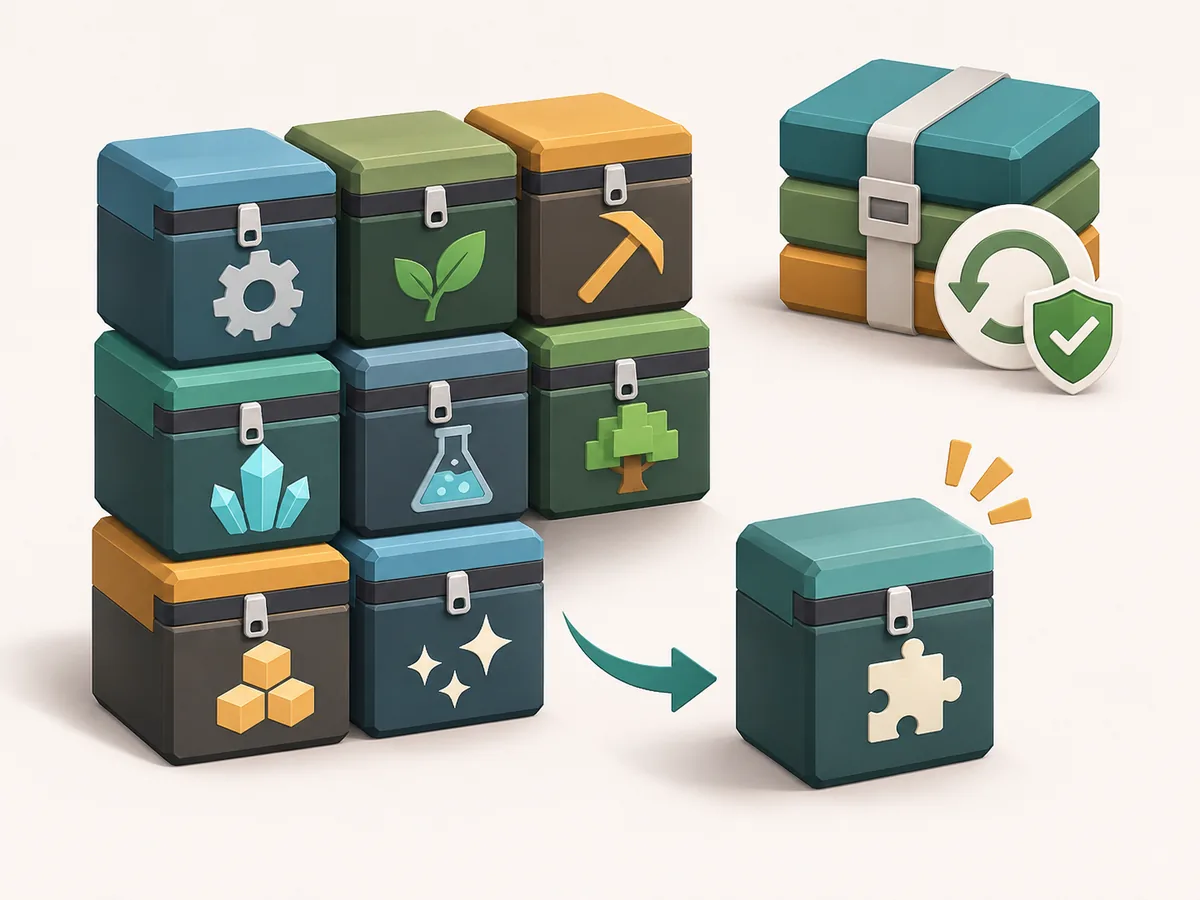
Can you remove a mod from any Modrinth modpack?
Custom instances can usually be edited through their content list. A linked or official pack may need to be unlinked or copied first, and app labels can change between versions; follow the controls shown for your instance.
An installed instance and a published MRPACK are different. The Modrinth MRPACK format defines file paths, hashes, downloads, dependencies, and environment rules. A local edit does not rewrite that manifest or update the public project; maintainers must prepare and test a new version to share it.
Before you remove anything
Identify the correct instance and the mod's role first. Make a reversible change you can test without risking your only world save.
- Confirm the profile. Select the exact instance you launch. Similar pack names or duplicate profiles make it easy to edit one copy and keep playing another.
- Close Minecraft. Do not edit mod files while the game or launcher is writing to that instance.
- Back up the instance and world. Copy the instance folder or use the launcher's supported export/backup flow. Keep the copy outside the active profile.
- Record the pack state. Note the Minecraft version, loader, mod name and version, and why you want it removed. This makes a rollback much easier.
Use the MRPACK Reader or manifest guide to inspect pack contents. Inspection helps identify entries, but does not replace a backup or dependency check.

Remove a mod in Modrinth App
To remove mods from a Modrinth modpack in the app, select the custom instance and open its content list. Current labels may differ slightly between releases.
- Open Modrinth App and select the intended instance from your library.
- Open its content or mods view and locate the mod by its project name, not just a short JAR filename.
- If there is a disable control, use it first. A disabled mod is easier to restore if the instance stops launching.
- If the test is successful and you want it gone, use the app's remove/delete control for that instance.
- Launch the copy and check the result before returning to your normal world or sharing the changed pack.
A third-party Modrinth-hosting guide shows the Content view and explains that custom packs can remove items there, while linked packs may require an editable copy. See MelonCube's Modrinth modpack instructions as a reference, then follow the controls available in your own app version.
Editing unavailable? Do not try to bypass a project-managed pack by changing the creator's published files. If the current app offers an unlink, duplicate, or custom-pack action, use that to create a separate editable copy. Otherwise, ask the pack maintainer which changes are supported.
Manual removal from a local instance
To remove mods from a Modrinth modpack manually, work in a local instance folder you control rather than a linked project; identify the profile and make a backup first.
- Open the instance folder from the launcher so you do not guess its storage path.
- With Minecraft closed, open that instance's
modsdirectory. - Match the target JAR to the mod name and version. If the filename is unclear, inspect the instance's content list first.
- Move the JAR into a temporary holding folder instead of permanently deleting it.
- Start the test instance. If the launcher restores the file or reports a missing dependency, restore it and use the supported content controls or make a custom copy.
Do not rename a normal ZIP or MRPACK and assume the format has been updated. A valid MRPACK has structured metadata, file entries, hashes, and dependency information. If you are a pack author, update the source pack deliberately, validate its manifest, and test a fresh import. For a local player instance, do not hand-edit modrinth.index.json just to remove one installed mod.
Check dependencies before deleting a mod
Mods may depend on shared libraries or add content another mod expects. A launcher may catch required dependencies, but not every problem appears before launch. Removing libraries can stop other mods; removing content mods can affect saved blocks, items, recipes, or terrain.
| Mod type | What to check | Safer first test |
|---|---|---|
| Library or API | Which installed mods list it as a required dependency? | Keep it unless dependent mods are also removed or replaced. |
| World generation or content | Does the current save contain its blocks, items, dimensions, or generated terrain? | Test with a copied world; create a fresh test world if needed. |
| Client-only utility | Does it affect only the local interface, or does the server require it? | Check the server pack instructions before changing a multiplayer profile. |
| Optional feature | Does the pack mark it optional or provide a supported toggle? | Use the pack's own option before removing files manually. |
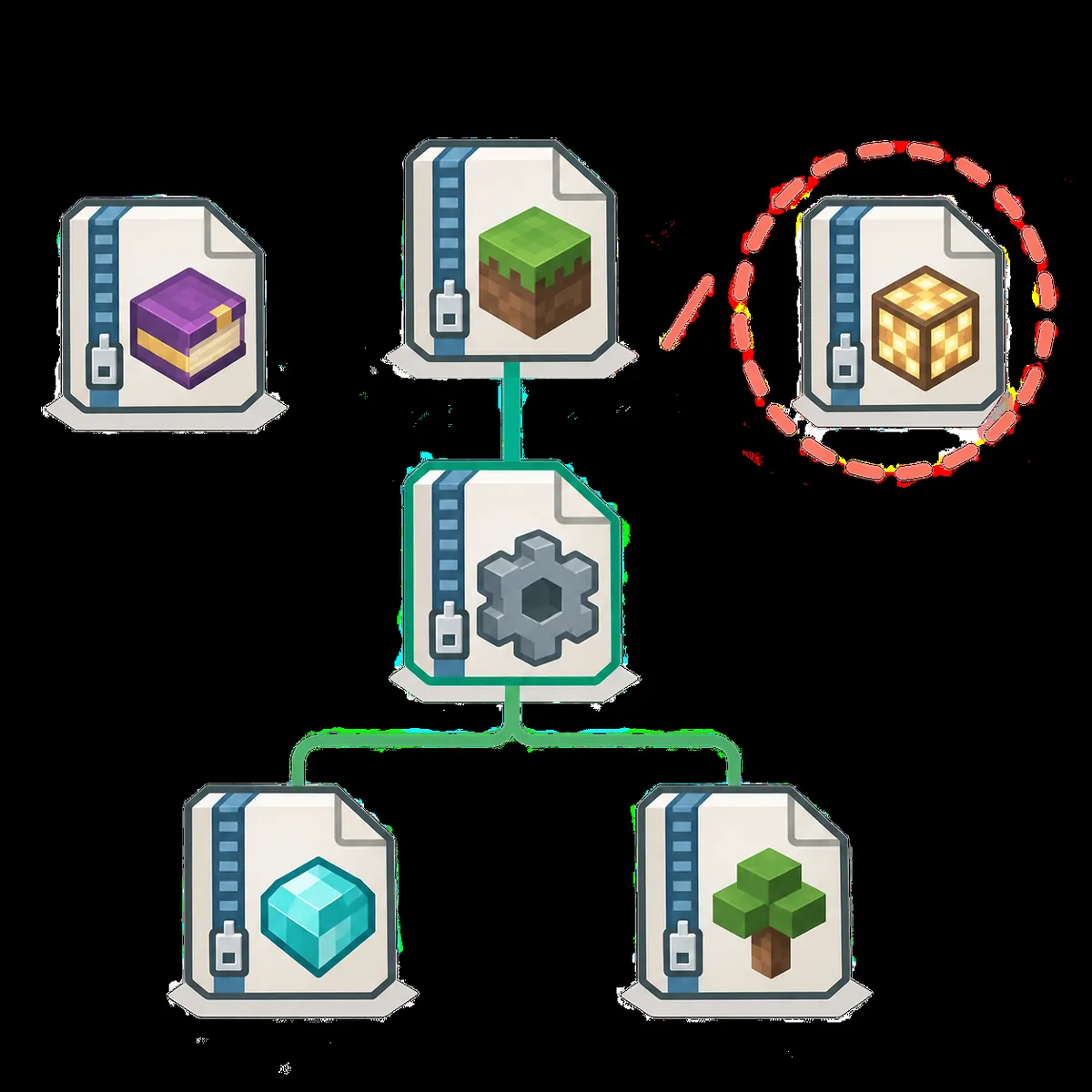
When a launch fails, check the latest log or crash report for a missing class, dependency, or mod ID. Restore the removed file first if you are unsure; then test one change at a time. Removing several mods at once makes it harder to tell which change caused the problem.
Protect your world and multiplayer setup
Keep the original world untouched until the edited instance launches. A menu or client utility may be isolated, but mods that add blocks, items, dimensions, terrain, or chunk data can affect existing saves when removed.
Open a copied world and inspect familiar areas, inventories, and builds. Check the log for missing-mod errors; a clean menu alone does not prove a save is safe. For multiplayer, ask the server owner before changing client files so required mods and versions stay compatible.
Verify the change before keeping it
Use a small verification pass after removing or disabling a mod:
- Confirm the intended instance is still selected and the target mod no longer appears as active.
- Start Minecraft once and check that the expected loader and remaining mods initialize.
- Open the copied world and review areas that used the removed mod.
- Check the log for dependency, registry, or missing-file errors.
- Keep the backup until you have played the test copy and are satisfied with the result.
If the goal was to update the pack for friends or publish a new version, treat that as pack maintenance rather than a local edit. Follow the Modrinth modpack update guide and test the exported version separately.
Common problems after removing a mod
The mod comes back after restart
You may have edited a managed pack, the wrong profile, or a file outside the launcher workflow. Reopen the exact instance and use its supported control or an editable copy.
The instance reports a missing dependency
Restore the mod and inspect the error. It may be a required library; change dependent content only when the pack supports it and you can test the full instance.
The game starts but the world looks different
Return to your backup and test a copy. Removing a JAR does not convert modded blocks or data already stored in a world into vanilla content.
Multiplayer says the mod list does not match
Restore the required mod or use a separate single-player instance. Change a shared profile only after the server owner confirms the allowed client list.
Frequently asked questions
Can I remove a mod from any Modrinth modpack?
You can remove mods from a Modrinth modpack when you can edit its custom instance. A project-managed or linked pack may restrict edits; make an editable copy or use the app's supported unlink option instead of changing the published project.
Should I disable or delete a mod?
Disable it first when that reversible option exists. Delete it after a test only if you have checked dependencies and the mod's effect on the world.
Will removing a mod change the original Modrinth project?
No. A local instance edit affects that copy. A pack maintainer must deliberately prepare and publish a new version to change the project's shared files.
Can I keep my world after removing a mod?
Possibly. Back up the save and test a copy because mods that add blocks, items, dimensions, or world-generation data can affect existing areas.
Why does the removed mod return?
The launcher may restore a project-managed definition, or the wrong profile may have been edited. Confirm the selected instance and use its supported content controls.
Can I remove a mod from a server pack?
Only if the server's pack owner permits it and the remaining mods still match the server. Client and server lists may differ for client-only mods, but required server mods must stay compatible.
Need to inspect the pack first?
Review the manifest, dependencies, file paths, and overrides before making a local change.
Open the MRPACK Reader