Quick answer
If you are looking for how to import MRPACK to Prism Launcher, open Prism, add a new instance, choose Import from zip, select the complete .mrpack file or paste a direct download URL, and wait for the instance to finish setting up. Then check the Minecraft version, loader, Java runtime, and failed downloads before you launch. Prism's official import documentation says the import screen accepts ZIP or MRPACK files from a website or from your filesystem. Do not put the raw archive into .minecraft/mods.
What Prism Launcher imports
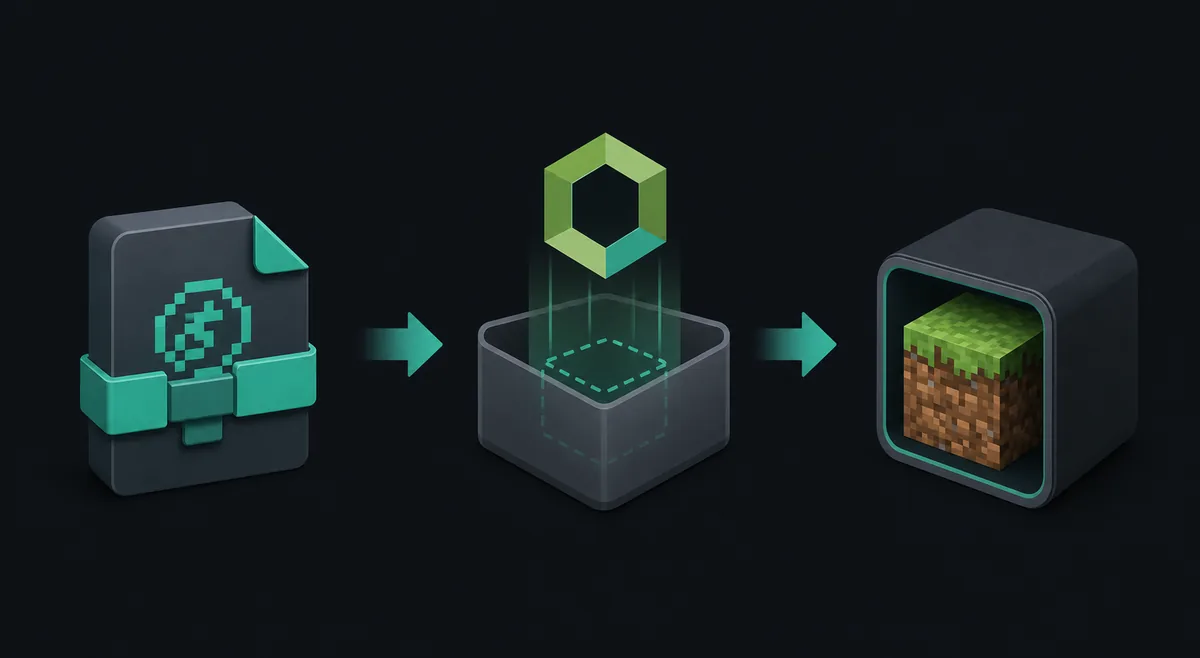
Prism Launcher can import a Modrinth .mrpack through its ZIP import screen. The file is ZIP-based, but it is not just a renamed collection of mod JARs. The official Modrinth MRPACK format documentation describes a root-level modrinth.index.json manifest, dependencies, file paths, hashes, download references, and optional override folders.
That structure explains why native import is usually the cleanest route. Prism can use the manifest to create an instance and retrieve the files it needs. Extracting the archive by hand may show useful folders, but it does not automatically rebuild the complete Minecraft profile or download every referenced dependency.
Before you import an MRPACK
A few checks prevent most failed imports. Keep the original file until the new instance launches once, and do not assume that a file is valid just because its name ends in .mrpack.
- Confirm the download finished. A zero-byte file, an HTML error page, or a partially saved browser response is not a usable pack.
- Check the Minecraft edition. MRPACK is part of the Java modpack ecosystem. It is not a Bedrock
.mcpackor.mcaddon. - Note the project version and loader. Read the Modrinth project version before importing so you know whether the pack expects Fabric, Forge, Quilt, or NeoForge.
- Use a real file or direct URL. A project page URL, a preview page, or a temporary redirect may not provide the archive Prism expects.
- Do not rename a normal ZIP. Changing
.zipto.mrpackdoes not createmodrinth.index.json, hashes, dependencies, or valid pack metadata.
Do not install the raw MRPACK in the mods folder
The mods folder is for individual loader-compatible mod files. An MRPACK is a complete pack definition. Import it as a Prism instance, use the MRPACK Reader when you need to inspect its manifest, or use a real MRPACK-to-ZIP conversion when a manual workflow is the actual goal.
How to import MRPACK to Prism Launcher
The labels can move slightly between Prism Launcher releases, but the import concept remains the same: create an instance and choose the import path instead of starting from a blank Vanilla profile.
1. Open Prism Launcher and add an instance
Start Prism Launcher and use the control for creating or adding a new instance. If you are already looking at an existing profile, do not overwrite it just to test a downloaded pack. A separate instance makes it easier to compare the loader, Java version, mods, and logs.
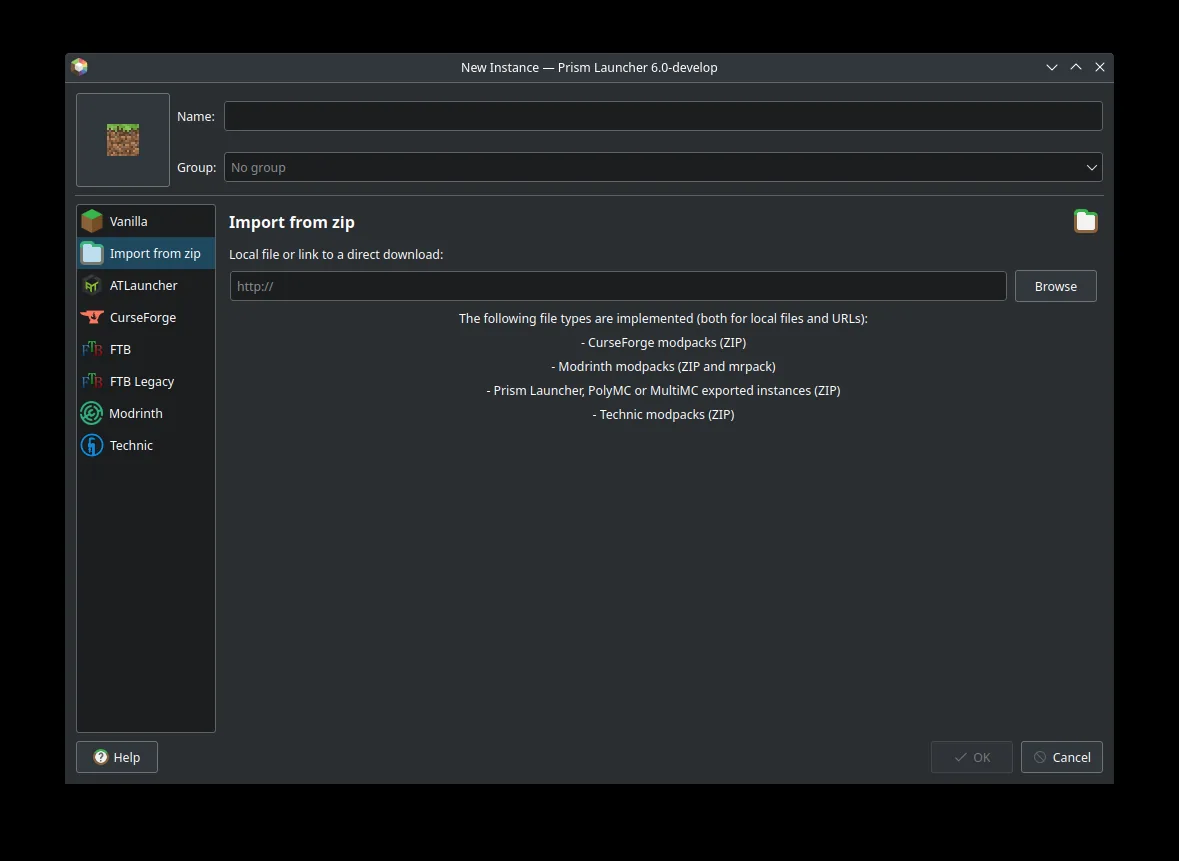
2. Choose Import from zip
In the new-instance dialog, select Import from zip. The name refers to the archive-based import screen; Prism's official documentation lists Modrinth packs in ZIP and MRPACK form among the supported file types.
3. Select the local MRPACK or paste a direct link
For a file already saved on your computer, use Browse and select the complete .mrpack. For a trusted direct download link, paste the URL into the import field. A direct link must resolve to the archive itself; a Modrinth project page, a login page, or a short-lived HTML redirect is not the same thing.
If the URL import fails but the browser can download the file, save the file locally and retry the local-file route. This separates a URL or redirect problem from a damaged pack and gives you a stable copy for another attempt.
4. Name the instance and let Prism finish setup
Choose a clear instance name and group if Prism asks for them, then confirm the import. The launcher may need to read the manifest, create the instance directory, install the declared Minecraft and loader components, and retrieve referenced files. Leave the connection available until the setup completes.
A successful dialog is not the same as a successful playable profile. Open the new instance and look for missing-download warnings before clicking Play.
5. Check the instance before launching
Open the instance settings and compare them with the Modrinth project version. The following checks catch most “it imported but crashed” cases:
| Check | What to confirm | Why it matters |
|---|---|---|
| Minecraft version | The instance matches the version declared by the pack, not a different version already installed on your computer. | Mods and loaders are commonly tied to a specific Minecraft release. |
| Loader | Fabric, Forge, Quilt, or NeoForge matches the pack's metadata and project notes. | Loader families are not interchangeable just because the archive contains a mods folder. |
| Java runtime | Use the Java version appropriate for the selected Minecraft release and loader. | A correct pack can still fail at startup when the runtime is incompatible. |
| Downloads | Look for failed or blocked dependency downloads and retry them before launching. | Many MRPACK files reference downloads instead of bundling every JAR inside the archive. |
| Instance path | Confirm that you are editing the new imported instance rather than an older profile with a similar name. | Mixing files between profiles makes a clean diagnosis much harder. |
What to do when Prism Launcher cannot import the file
Prism does not recognize the file
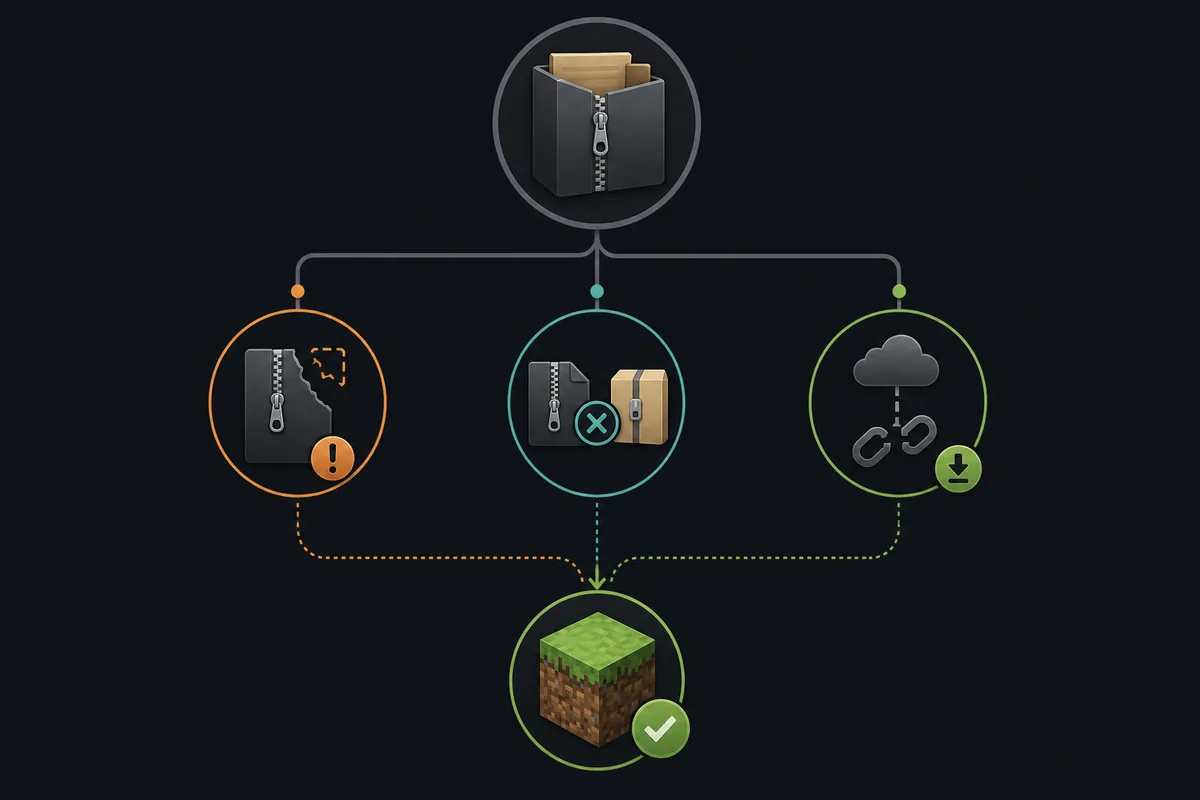
Check the extension and file size first. If the file was downloaded from a page that returned an error, it may contain HTML even though the filename looks correct. Download the pack again from the original project or use the local copy only after confirming that it opens as an archive with a root modrinth.index.json.
The import works from a file but not from a URL
This usually points to the URL rather than the pack. The link may require a session, redirect through a page, expire quickly, or return a content type that Prism cannot treat as an archive. Download the file locally and use Browse. Do not guess a CDN path or add random query parameters to a download link.
The instance is created but files are missing
MRPACK can reference external files, so a network failure can leave an incomplete instance. Review Prism's download or log messages, retry the failed files, and check whether the project has removed or withheld a version. If the same file repeatedly fails, compare the pack's manifest using the MRPACK Reader before changing the instance by hand.
The pack imports but crashes on the first launch
Check Minecraft version, loader, Java, and the first meaningful error in the log. A crash can come from a missing dependency, a client-only mod used in the wrong environment, a loader mismatch, or a failed download that was not obvious in the import dialog. Make a copy of the instance before removing mods so you can return to the imported state.
The file is actually a normal ZIP
A normal ZIP may be a CurseForge profile, a Prism export, a server package, or a folder archive. It is not automatically an MRPACK. If you need to understand the difference, read what an MRPACK file contains and the MRPACK-to-ZIP guide. Use the converter only when you intentionally need a ZIP-style manual workflow; do not rename the extension and expect Prism to repair the metadata.
MRPACK import vs converted ZIP
| Your goal | Best first route | Why |
|---|---|---|
| Play the pack in Prism Launcher | Import the original .mrpack. |
Prism can use the Modrinth manifest and create a dedicated instance. |
| Inspect files or overrides | Use the MRPACK Reader or an archive tool. | Inspection is different from installing and launching the pack. |
| Prepare a manual install or unsupported launcher workflow | Use the MRPACK to ZIP converter, then follow the matching guide. | A real conversion can unpack overrides and explain what is not preserved automatically. |
| Set up a dedicated server | Use the MRPACK server installation guide. | Client instances and server files can have different overrides, loaders, and dependencies. |
Prism Launcher and MultiMC notes
Similar launchers can share instance concepts, but an exported instance ZIP is not automatically a Modrinth MRPACK. Prism's import screen supports several archive types, so read the file type shown in the dialog and keep the source format clear. If a MultiMC or Prism export is rejected as a Modrinth pack, use the import option intended for that export or rebuild the pack from the correct source rather than changing the filename.
FAQ
Can Prism Launcher open MRPACK files?
Yes. Prism Launcher's official Import page says you can import modpacks from a ZIP or MRPACK file from a website or from your filesystem. Use the import flow for a new instance instead of putting the archive in a Minecraft runtime folder.
How do I import a local MRPACK file into Prism Launcher?
Create or add an instance, select Import from zip, choose Browse, select the complete .mrpack, and let Prism finish setting up the instance. Check the version, loader, Java, and downloads before the first launch.
Can I paste a direct MRPACK URL into Prism Launcher?
Yes. The official import screen has a field for a local file or a direct download link. If the URL imports an HTML page, expires, or redirects to a project page, download the pack locally and import the saved file.
Why does Prism Launcher fail to import my MRPACK?
Start with the file itself: verify that the download is complete, the extension is genuine, and the archive contains a root modrinth.index.json. Then check the URL, network access, dependency downloads, loader, and Minecraft version.
Should I rename an MRPACK file to ZIP?
No. MRPACK is stored in a ZIP-based container, but a rename does not perform a conversion. It does not add metadata, retrieve referenced files, or create a correct Prism instance. Use native import or a real conversion workflow.
Does Prism Launcher install every mod in the MRPACK?
It uses the pack's manifest and referenced downloads during import, but the result still depends on network access and the availability of those files. Review failed downloads and logs before assuming the import is complete.
Sources and media notes
The import path and supported ZIP/MRPACK wording were checked against the Prism Launcher Wiki import documentation on August 22, 2026. The file-structure explanation links to Modrinth's official MRPACK format documentation. The import screenshot is official Prism Launcher Wiki media; the source image visibly shows a 6.0-develop build and is presented as version-specific reference material. The two dark flow diagrams are AI-generated editorial illustrations, not official Prism Launcher screenshots.
Final takeaway
For the normal Prism Launcher workflow, keep the original MRPACK intact, open a new instance, choose Import from zip, select the local file or trusted direct URL, and let the launcher build the instance. Before launching, confirm the Minecraft version, loader, Java runtime, and dependency downloads. If the import fails, diagnose the file and URL first; use ZIP conversion only when the target workflow genuinely needs manual inspection or installation.
Need a ZIP instead of a native import?
Use the browser-based converter when Prism is not the target workflow or when you need to inspect and install the pack manually.
Open MRPACK to ZIP Converter