Quick answer
To use a Modrinth modpack on Lunar Client, open the client, go to its Modpacks area, drag the downloaded .mrpack file into the launcher window, choose Install Modpack, and launch the installed profile after checking the Minecraft version. Do not put the raw MRPACK in .minecraft/mods: it is a manifest-driven pack, not one standalone mod. If Lunar Client cannot import the file, try a native Modrinth or Prism workflow before using this site's MRPACK to ZIP converter.
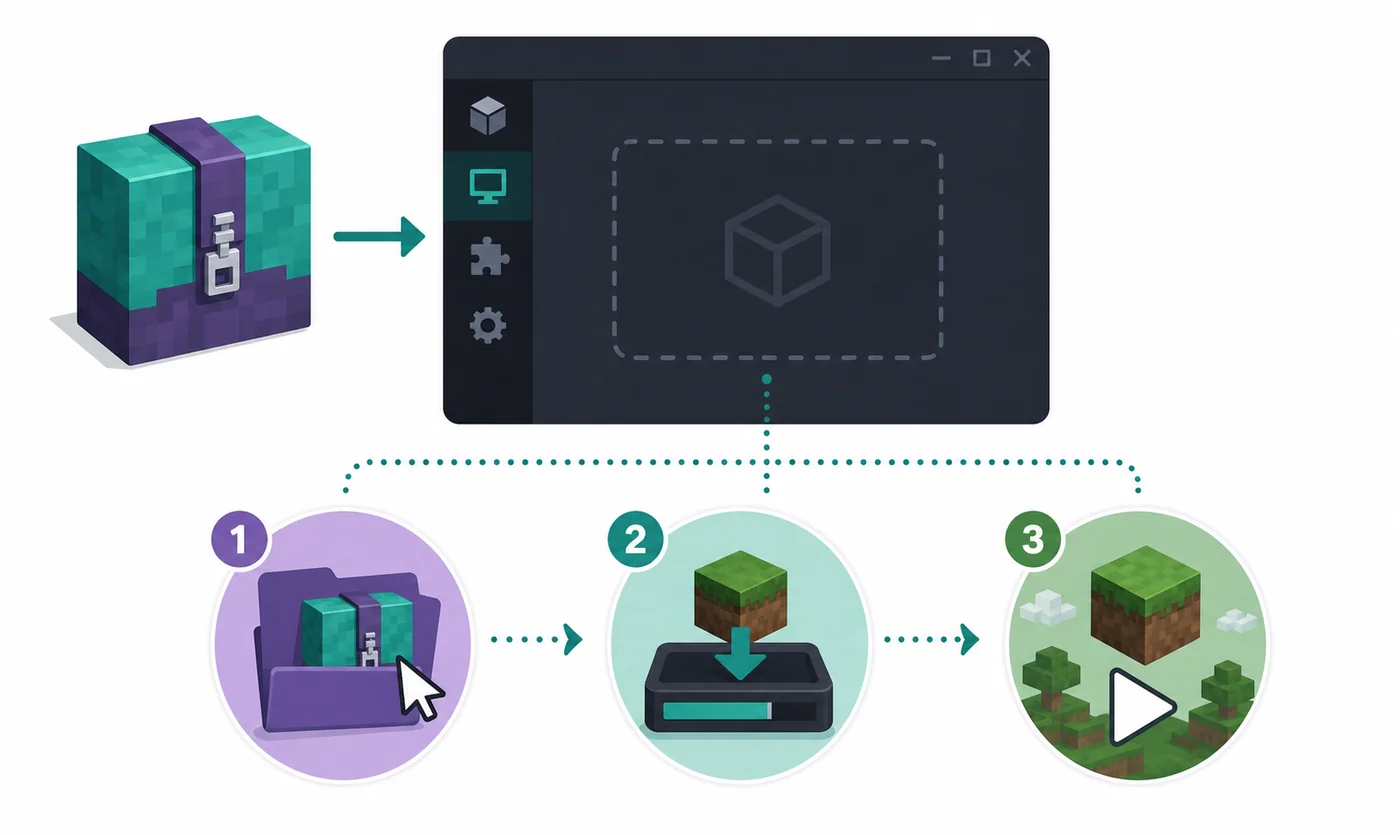
What this Lunar Client guide covers
The general MRPACK installation guide compares Modrinth App, Prism Launcher, CurseForge, TLauncher, servers, and manual ZIP installs. This page narrows the decision to Lunar Client, because the buttons, import gesture, and profile checks are different from a generic file-opening workflow.
- Where to get the Lunar Client installer without relying on a guessed mirror or an old file link.
- How to bring a local
.mrpackfile into the Lunar Client Modpacks view. - What to check before clicking play: Minecraft version, loader, pack type, and download completeness.
- What to do when Lunar Client does not recognize the file or the installed pack crashes.
Before you start: check the file and the target profile
An MRPACK is ZIP-based, but the extension alone does not make a normal archive into a valid Modrinth pack. Modrinth's official MRPACK format documentation describes the modrinth.index.json manifest, file paths, hashes, dependency references, downloads, and override folders that a compatible launcher reads.
Before opening Lunar Client, confirm that the file finished downloading and ends in .mrpack. If the file is zero bytes, opens as a web page, or was renamed from an unrelated ZIP, Lunar Client cannot repair it. Keep the original download until the new instance launches successfully; that makes it easier to retry or compare the pack later.
Do not install an MRPACK into the mods folder
The mods folder is for individual mod files that match a loader. An MRPACK is a pack recipe containing a manifest and references to many files. Import it through Lunar Client, Modrinth App, or Prism Launcher instead of copying the archive into a runtime folder.
1. Download or update Lunar Client from its official page
Use the official Lunar Client download page and choose the installer for your operating system. The page may change its labels, supported platforms, or installer presentation over time, so use the current official page rather than copying a version number from an old tutorial. This guide intentionally does not claim a latest version, installer size, or direct file URL.
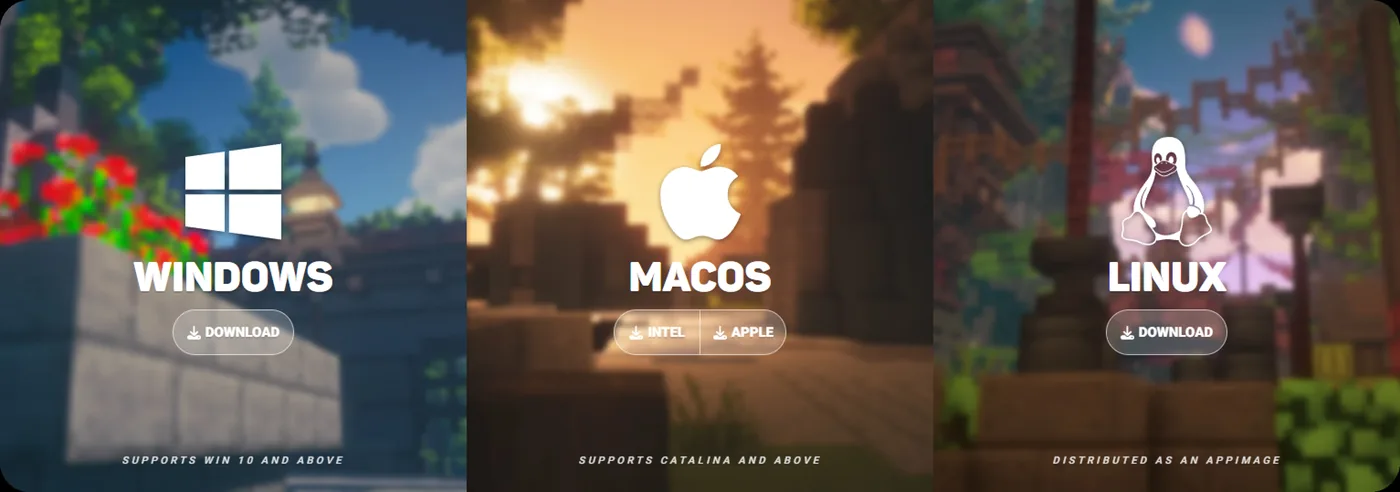
After installation, sign in or open the client as required by the current Lunar workflow. You do not need to pre-create a random Minecraft profile for the MRPACK. Let the modpack import create or configure the relevant instance, then review the selected version before launching.
2. Import an .mrpack file into Lunar Client
The official Lunar Client workflow uses the Modpacks area and a drag-and-drop import. Keep the MRPACK in an easy-to-find folder such as Downloads, then open the launcher beside File Explorer or Finder.
- Launch Lunar Client and open the Modpacks section.
- Locate the complete
.mrpackfile on your computer. - Drag the file into the Lunar Client window. Do not drag an extracted folder unless the current client specifically asks for one.
- Wait for the import prompt or pack preview to appear. If nothing happens, confirm that the window is the active Modpacks view and retry with a fresh copy of the file.

3. Choose Install Modpack, then wait for the instance to finish
When Lunar Client recognizes the file, choose Install Modpack or the equivalent current action. The client may need to download referenced mods, dependencies, libraries, and pack assets. Keep the connection open until the installation finishes; closing the window halfway through can leave an incomplete profile that looks like a bad MRPACK.
After installation, find the pack in the Modpacks area rather than searching for individual JARs. Lunar Client's modpack view can show available packs and a selected version. Use that profile as the source of truth for this installation, not an unrelated older instance with a similar name.
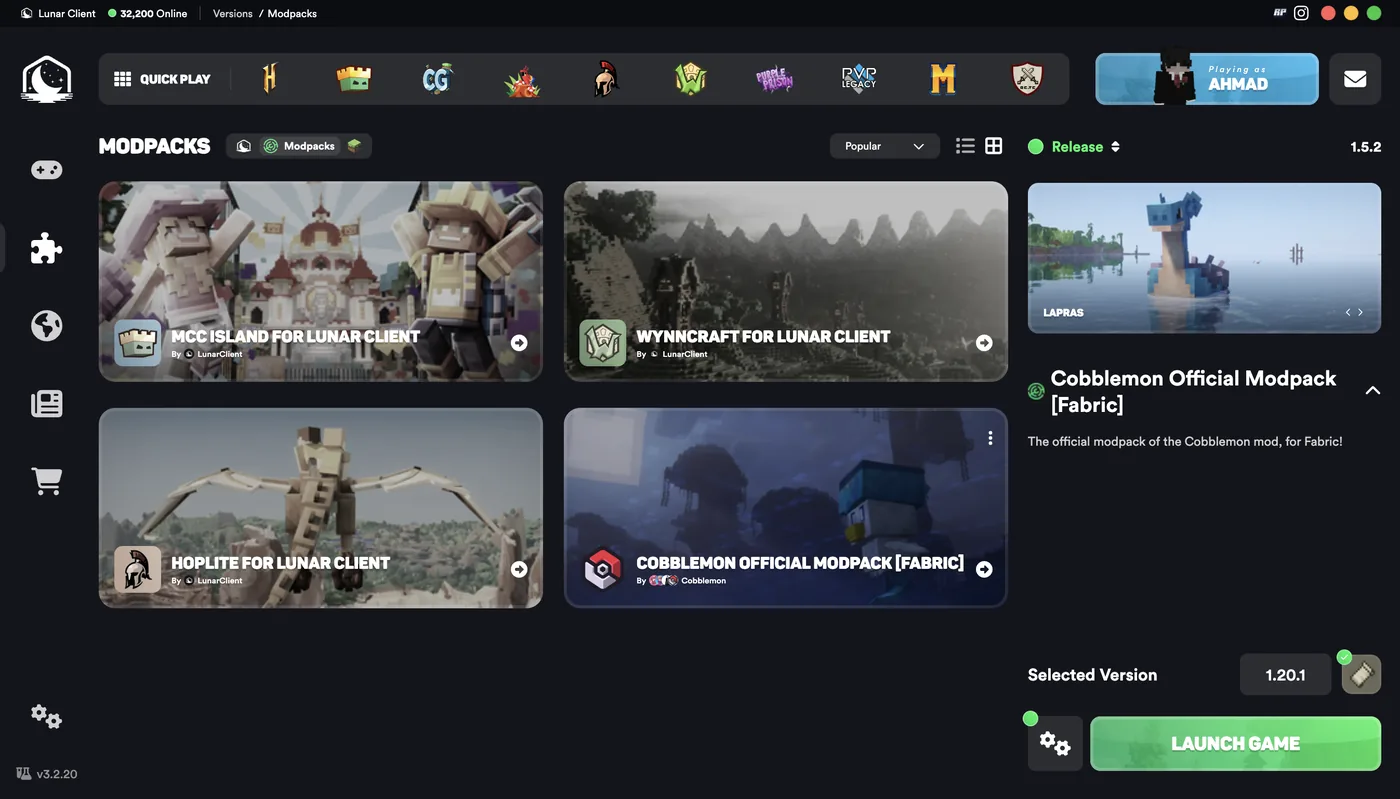
4. Check the Minecraft version, loader, and pack type
Before clicking play, compare the imported pack with the project page or its manifest. A successful import does not mean that every version choice is interchangeable. The client still needs the right Minecraft release and mod-loader environment for the files in the pack.
| Check | What to verify | Why it matters |
|---|---|---|
| Minecraft version | Match the version declared by the pack, not simply the newest version shown in another profile. | Mods built for another Minecraft release may fail to load or crash during startup. |
| Loader family | Check whether the pack expects Fabric, Forge, Quilt, or NeoForge. | Loader families are not interchangeable just because the archive contains a mods folder. |
| Client or server purpose | Confirm that the pack is intended for client play if you are launching it in Lunar Client. | A server-focused package may require different files, while a client pack can include client-only mods. |
| Download completeness | Look for failed downloads, missing dependencies, or an import that ended early. | MRPACK files can reference remote files rather than bundling every JAR inside the archive. |
5. Launch the pack and test one clean start
Once the version and loader look correct, launch the imported instance. The first start can take longer because the client may generate folders, download assets, build caches, or prepare a new profile. Give the process a moment before assuming that a slow first launch is a failure.
If Minecraft reaches the title screen, test the pack in a new or disposable world before copying saves from another profile. This separates a pack-install problem from a world-save problem. If the pack launches but a feature is missing, compare the selected version and the installed mod list with the pack's project notes.
Common Lunar Client MRPACK problems
The launcher does not react when I drop the file
Make sure you are on the Modpacks view, not the home screen or a running game window. Confirm that the file ends in .mrpack and has a non-zero size. Try moving it to a simple local folder and dragging it again. If the current UI uses an import control instead, follow the visible Lunar prompt rather than relying on an older screenshot.
The file imports but installation fails
Download the pack again from the original project or trusted share and compare the file size. A browser error page saved with an MRPACK extension, an interrupted download, or a missing network connection can all produce an import that starts but never completes. If the pack uses external downloads, a host may block one of the referenced files.
The game crashes after I click play
Check the Minecraft version and loader first. Then review the log for a missing dependency, an incompatible mod, or a Java/runtime issue. Do not immediately delete half of the mods: make a copy of the instance, identify the first meaningful error, and compare the installed profile with the pack's declared environment.
I only have a ZIP or an extracted folder
A normal ZIP is not automatically an MRPACK. If you are trying to use a pack that has already been converted to ZIP, inspect its folders and metadata before importing it. If Lunar Client does not support that archive as a Modrinth pack, use a launcher with native MRPACK support or follow the MRPACK-to-ZIP and manual-install guide. Renaming the extension is not a conversion.
When Modrinth App or Prism Launcher is the better choice
Lunar Client is useful when you already play through its launcher and want its integrated modpack experience. A different launcher may be simpler when the pack author documents only Modrinth App or Prism Launcher, when Lunar cannot import the file, or when you need deeper control over instance folders and loader settings. The MRPACK opening guide explains how to choose an opener, while the MRPACK Reader is useful when you need to inspect the manifest without starting the game.
| Goal | Best first path | Use another route when |
|---|---|---|
| Play the pack inside Lunar Client | Import the .mrpack in the Lunar Client Modpacks view. |
The import control is unavailable, the pack is not compatible, or the author requires another launcher. |
| Inspect the manifest | Use the MRPACK Reader or an archive tool for inspection. | You need a playable instance rather than a file-level view. |
| Install manually or prepare a server | Convert the MRPACK to ZIP, inspect the output, and follow the matching setup guide. | The target host supports a server-aware MRPACK importer; use that path first. |
FAQ
Can Lunar Client use Modrinth modpacks?
Yes. The official Lunar Client guide documents importing a Modrinth .mrpack into the client's Modpacks area, installing it, selecting the relevant version, and launching the resulting profile.
How do I import an .mrpack file into Lunar Client?
Open Lunar Client, go to Modpacks, drag the complete .mrpack into the window, and choose Install Modpack when the import prompt appears. The labels may change, but the important part is importing the pack through Lunar's Modpack workflow.
Why is Install Modpack disabled or missing?
Confirm that Lunar Client recognizes the file as an MRPACK and that you are using the Modpacks view. A zero-byte file, an incomplete download, an HTML error page, or a normal ZIP with a renamed extension can prevent the import action from appearing.
Should I rename MRPACK to ZIP?
No. Renaming can let an archive tool inspect the container, but it does not download referenced mods or build a complete manual profile. Use native Lunar import when possible, or perform a real conversion only when you need a ZIP-based fallback.
Can I use a Lunar Client MRPACK on a server?
Not automatically. A client launcher profile and a dedicated server have different compatibility requirements. For server work, follow the MRPACK server installation guide and check client-only mods, server overrides, loader versions, and failed downloads.
Sources and media notes
The Lunar-specific import sequence and screenshots are based on the official Lunar Client guide to using Modrinth modpacks, checked August 2, 2026. The file-format explanation links to Modrinth's official MRPACK format documentation. The download image and launcher screenshots are official Lunar Client media reused locally for editorial explanation; the first illustration is AI-generated and clearly labeled as an illustrative diagram, not an official screenshot.
Final takeaway
For the normal Lunar Client workflow, keep the MRPACK intact, import it from the Modpacks view, choose Install Modpack, verify the Minecraft version and loader, and launch the new profile. If the file will not import, diagnose the download and format before renaming extensions. Use Modrinth App or Prism Launcher when they are the documented compatible path, and use ZIP conversion only when the task genuinely requires manual inspection or installation.
Need to inspect or convert the pack instead?
Use the browser-based tools when Lunar Client cannot import the file or when you need to review the pack before a manual install.
Open MRPACK to ZIP Converter