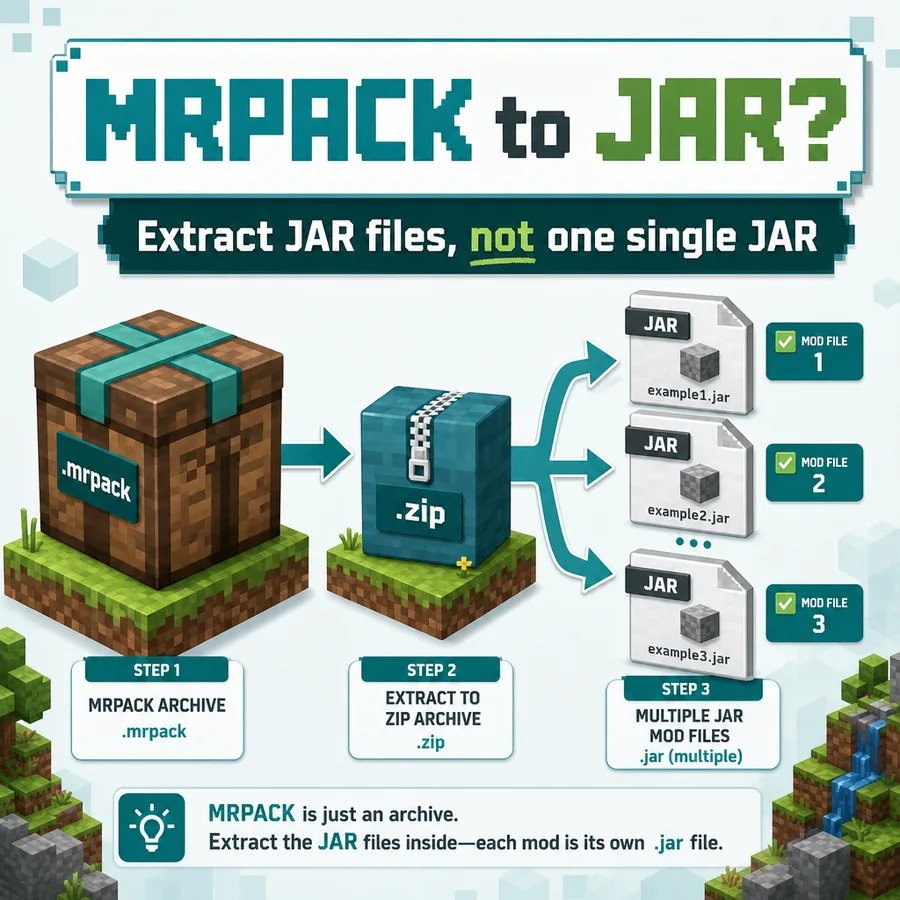
Quick answer
If you searched for MRPACK to JAR, the real answer is this: you usually cannot convert an .mrpack file into one useful .jar file. An MRPACK file is a Modrinth modpack package. It can reference many mod JAR files, config files, resource files, loader requirements, and environment rules. A JAR file, in this context, is usually one Minecraft mod file placed inside a mods folder.
The practical solution is not a one-click MRPACK to JAR converter. The practical solution is to open or convert the MRPACK into a ZIP-style structure, read the manifest, then collect the actual JAR files that belong in the pack.
In other words, an honest MRPACK to JAR converter must be manifest-aware and multi-file by design. It needs to preserve paths, hashes, download sources, dependencies, loader rules, and overrides; a tool that only renames the extension or merges files is not converting the pack into a usable Minecraft mod.
Search intent: what users really want from MRPACK to JAR
Most people who type mrpack to jar, mrpack file to jar, or how to convert mrpack to jar are not asking for a developer build process. They usually have a downloaded .mrpack file, want to play Minecraft with the mods inside it, and expect Minecraft mods to appear as JAR files. That expectation is understandable because many Java Edition mods are distributed as .jar files.
The confusion starts because a modpack and a mod are different things. A modpack is a recipe for a complete setup. A mod JAR is one ingredient. Trying to turn the entire recipe into one ingredient loses the structure that makes the setup work.
For this reason, this guide is written as an information page rather than a fake converter page. It explains when a JAR exists, where it comes from, how MRPACK stores file references, and how to get the files you actually need without breaking the pack.
What an MRPACK file actually contains
According to the official Modrinth documentation for the Modrinth Modpack Format (.mrpack), an .mrpack file is stored as a ZIP-format archive using the .mrpack extension. Its main metadata lives at modrinth.index.json in the root of the archive.
That manifest is the important part. It can list files that need to be downloaded, their destination paths, their hashes, their client or server environment rules, and dependency information such as the Minecraft version and loader. The archive may also include override folders that should be copied into a Minecraft instance.
This means a small MRPACK file can still represent a large modpack. It may not contain every final JAR directly. It may contain instructions and references for where those JAR files should come from.
| File type | What it is | Why it matters for MRPACK to JAR searches |
|---|---|---|
.mrpack |
A Modrinth modpack archive and manifest. | It describes a full pack. It is not one mod JAR. |
.jar |
A Java archive. For Minecraft players, this is commonly a mod file. | A pack may reference many JAR files, each placed under paths such as mods/example.jar. |
.zip |
A general archive format. | Useful for inspecting MRPACK contents because MRPACK is ZIP-based. |
modrinth.index.json |
The MRPACK manifest. | This file tells you which files belong in the pack and where they should go. |
overrides/ |
Files copied directly into the Minecraft instance. | Ignoring overrides can make a pack behave incorrectly even if the mod JAR files are present. |
Why a single MRPACK to JAR conversion is usually wrong
A real Minecraft mod JAR is not just a container full of random pack files. It has its own metadata and code structure. A modpack is different: it can reference dozens or hundreds of separate JAR files plus configuration and override folders.
Combining all of those into one JAR would not magically make Minecraft understand the result. It would more likely create an archive that looks neat but does not work as a normal mod.
There are rare technical situations where developers merge JARs or shade dependencies, but that is a build-time software engineering task for mod authors. It is not how players install a Modrinth modpack. If your goal is to play, inspect, or manually install a pack, you want the individual files and folders in the correct places.
How to extract JAR files from an MRPACK file
The safest workflow is to treat the MRPACK as a modpack source, not as one file to rename into something else. Use the steps below when you want to extract JAR files from MRPACK for manual installation or troubleshooting.
People searching for MRPACK to JAR files usually want the individual mods that a pack references, not a single merged JAR. Keep that distinction clear: the right output is normally a set of separate files such as mods/sodium.jar, mods/lithium.jar, and any required config or override folders.
Step 1: Convert or open the MRPACK as a ZIP
Because MRPACK is ZIP-based, you can inspect it with archive tools in many cases. The easier route is to use the MRPACK to ZIP converter on this site, especially when you want a friendlier output for browsing files and moving folders by hand.
This step does not mean ZIP is the final installation format. It means ZIP is a practical inspection format. It helps you see the manifest, overrides, and any bundled files in a familiar structure. For a broader walkthrough of that workflow, see the full Modrinth modpack to ZIP guide.
Step 2: Open modrinth.index.json
Inside the extracted pack, find modrinth.index.json. Look for the files array. Each file entry can include a destination path, hash values, environment rules, and download URLs. A path such as mods/sodium-fabric.jar tells you that the final file belongs in the mods folder of the Minecraft instance.
Do not skip this step. If you only look for visible JAR files in the archive, you may think the pack is empty or broken when it is actually manifest-driven.
Step 3: Collect the listed JAR files
Some JAR files may already be present after conversion. Others may need to be downloaded from the manifest URLs. If your browser or file host blocks an automatic download, you may need to download those mods manually from Modrinth or the original source, then place them in the path shown by the manifest.
For manual installation, the most common target is the mods folder inside the Minecraft instance. Still, pay attention to files that are not mods. Config files, resource packs, shader settings, and scripts may belong elsewhere.
Step 4: Copy override files
MRPACK can include overrides, client-overrides, and server-overrides. These folders are not optional decoration. They can contain the settings that make the modpack feel like the pack author intended.
If you extract only JAR files and ignore overrides, the pack may launch but still behave incorrectly. You might miss keybindings, config tuning, resource settings, server files, or compatibility adjustments.
Step 5: Match the loader and Minecraft version
A correct set of JAR files can still fail if the loader is wrong. Check the pack metadata for the Minecraft version and whether it expects Fabric, Forge, Quilt, or another loader. Installing Fabric JAR files into a Forge instance, or using a mismatched Minecraft version, is a common reason manual installs fail.
Important limitation
A browser-based tool can help with conversion and inspection, but it cannot change the rules of the original pack format or the download permissions of every third-party host. If a file is referenced by the manifest but blocked by a remote host, the honest fix is to download that file from an allowed source and place it manually.
When should you use ZIP instead of JAR?
Use ZIP when your goal is to inspect, archive, share for manual review, or move a pack structure into a custom workflow. ZIP gives you a readable file tree. It helps you see which files are mods, which files are configs, and which files are metadata.
Use JAR only for individual mod files that Minecraft loads through a mod loader. If you have a folder of separate mod JARs after conversion, those JARs can be placed into the correct mods folder. But the MRPACK itself should not be treated as a single mod.
If your only goal is to play the pack quickly, importing the MRPACK into a supported launcher may be better than doing manual file work. Modrinth also documents general modpack usage in its Modpacks on Modrinth help article.
MRPACK to JAR decision table
Use this table before you move files. It keeps the MRPACK to JAR workflow separate from the ZIP conversion and ZIP to MRPACK rebuild workflows.
| Your goal | Correct action | Avoid |
|---|---|---|
| Play the pack normally | Import the MRPACK in Modrinth App, Prism Launcher, or another compatible launcher. | Renaming the MRPACK to JAR or copying it into mods/. |
| Get the mod JAR files for manual install | Convert MRPACK to ZIP, read modrinth.index.json, then collect files listed under mods/. |
Extracting only visible archive files and ignoring manifest downloads. |
| Prepare a server | Review server-supported mods, server overrides, loader version, and environment rules. | Uploading client-only JARs or client-only overrides to a dedicated server. |
| Create a new Modrinth pack | Use a ZIP to MRPACK or pack management workflow that builds valid metadata. | Trying to merge many mods into one JAR. |
Practical examples
Example 1: You downloaded a small MRPACK and see no JAR files. This does not automatically mean the pack is fake or broken. Open modrinth.index.json. If the manifest lists files with download URLs, the pack is telling a launcher or converter where to fetch the JAR files.
Example 2: You converted an MRPACK to ZIP and got separate JAR downloads. That usually means the tool retrieved files that belong in the pack. Move those JAR files into the target mods folder shown by the pack structure, then copy any required config and override files.
Example 3: You want one file to send to a server host. Do not send a made-up single JAR. Check whether the host accepts MRPACK, ZIP, or a normal Minecraft server directory. Server setup often requires separating client-only mods from server-supported files.
Example 4: You opened the converted ZIP and found failed-download notes. Use those notes as a checklist. Download the missing files from their original project pages, verify that each file matches the Minecraft loader and version, and place each JAR in the path named by the manifest.
Example 5: You only need the JAR list before installing anything. Use the MRPACK Reader or inspect modrinth.index.json before downloading every file. This is useful when you are checking whether the pack is Fabric, Forge, Quilt, or NeoForge before building a manual instance.
Common mistakes to avoid
- Renaming
.mrpackto.jar: This changes the file name, not the file's meaning. Minecraft will not treat a modpack archive as a normal mod. - Extracting only visible JAR files: Some files may be listed in the manifest and downloaded later. Always check
modrinth.index.json. - Ignoring overrides: A pack can depend on config and resource files outside the
modsfolder. - Mixing client and server files: Client-only mods can break a dedicated server. Review environment information before server installation.
- Using the wrong loader: Fabric, Forge, and Quilt packs are not interchangeable without checking compatibility.
FAQ about MRPACK to JAR
Can I convert MRPACK to JAR?
Usually no. A .mrpack file is a modpack archive and manifest, not one Minecraft mod. You can extract or download the individual mod JAR files listed by the pack, but converting the whole pack into one useful JAR is normally the wrong workflow.
Is an MRPACK file already a ZIP file?
Yes. Official Modrinth documentation says the modpack is stored in ZIP format while using the .mrpack extension. That is why ZIP tools and MRPACK to ZIP workflows are useful for inspection.
Can I just rename .mrpack to .jar?
No. Renaming only changes the extension. It does not turn the modpack into a valid Minecraft mod. If anything, renaming to .zip is more useful for inspection, but even then you still need to understand the manifest and dependencies.
Where are the JAR files in an MRPACK?
They may not all be stored directly inside the archive. Look in modrinth.index.json for file paths such as mods/example.jar and download URLs. The manifest tells you which JAR files are part of the pack and where they should be installed.
What is the best MRPACK to JAR converter?
The best answer is not a single-JAR converter. Use an MRPACK to ZIP workflow to inspect the pack and collect individual mod JAR files. If you only want to play the pack, a launcher that supports MRPACK may be simpler and less error-prone.
Can I use extracted JAR files in CurseForge, Prism Launcher, or MultiMC?
Often yes, but only if the loader, Minecraft version, dependencies, and configs match. Moving JAR files alone is not always enough. For a full pack experience, copy the right override files and verify the instance settings.
Why did my MRPACK to ZIP conversion download separate JAR files?
Some mod files are referenced by the manifest and fetched during conversion. If a browser security rule or third-party host blocks a file, the converter may report it separately so you can place the JAR manually in the correct folder.
Can a server host accept an MRPACK as a JAR?
No. A server host that asks for a mod JAR expects an individual mod file, not a whole Modrinth modpack. Ask whether the host supports MRPACK import, ZIP upload, or manual server folder upload.
How do I convert MRPACK to JAR files without losing configs?
First convert or inspect the MRPACK as a ZIP-style package, then collect the JAR files listed in modrinth.index.json. After that, copy overrides, client-overrides, or server-overrides as needed. JAR extraction alone is not enough when the pack depends on config, resource, or script files.
Why do some MRPACK to JAR tools show no output?
Many MRPACK files store references to downloads instead of bundling every JAR inside the archive. If a tool only scans the visible archive contents, it may miss manifest-listed files. Use a manifest-aware workflow or the MRPACK to ZIP converter so referenced downloads and failed-download notes are visible.
Final takeaway
The phrase MRPACK to JAR sounds simple, but it points to a misunderstanding. A Modrinth MRPACK is a package for a complete modpack. A JAR is usually one mod file. The reliable workflow is to inspect or convert the MRPACK, read the manifest, gather the individual JAR files, copy overrides, and install everything with the correct Minecraft loader.
If you remember one thing, remember this: do not try to make one JAR out of a whole MRPACK. Extract the pack intelligently, then use the JAR files where they actually belong.
Need the practical ZIP step?
Use the free browser-based converter to inspect a Modrinth pack, then follow this guide to understand the JAR files and override folders you see afterward.
Open MRPACK to ZIP Converter