If you are looking for MRPACK on Exaroton, the key is to choose the right installation route before uploading anything. Exaroton supports custom modpack uploads, but a Modrinth .mrpack is a manifest package, not automatically a complete server folder. Use a Modrinth-aware import only when the current host workflow accepts that package; otherwise start with a creator-provided server pack or prepare server files with a server-aware method.

What an MRPACK on Exaroton actually means
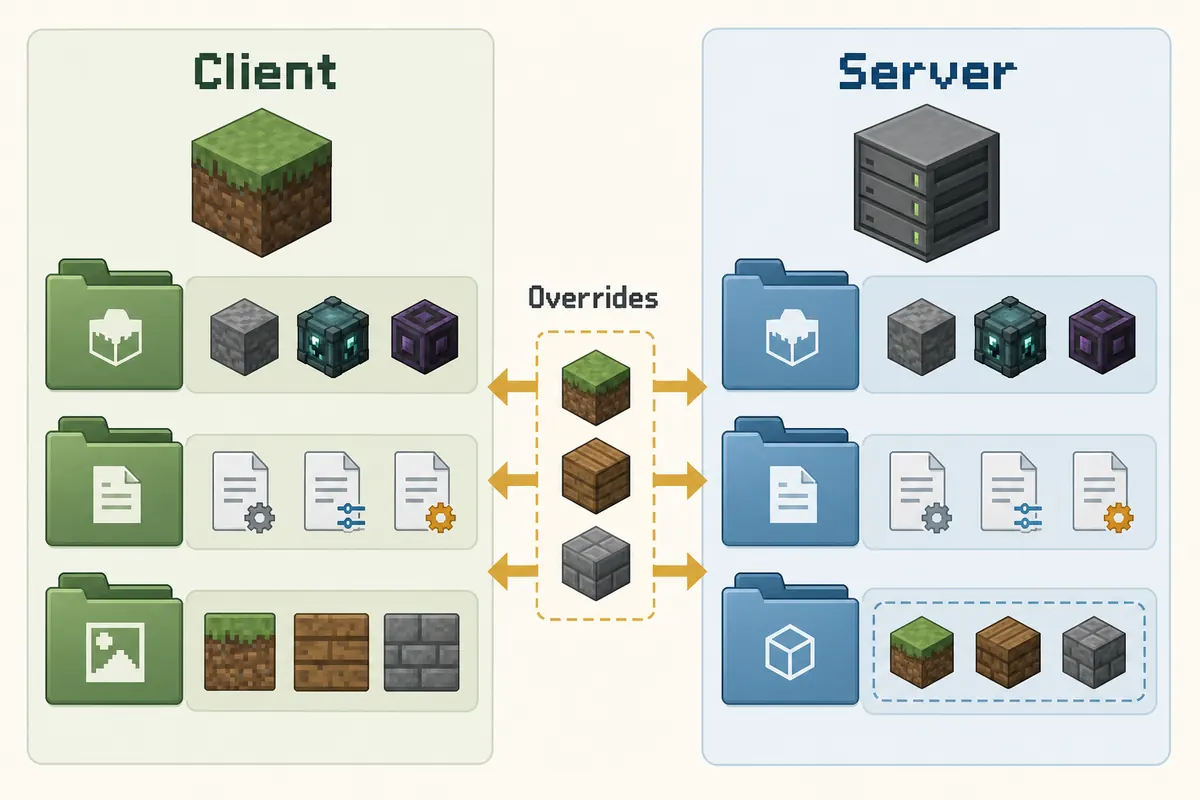
A Modrinth pack usually contains a root modrinth.index.json manifest. It lists Minecraft and loader dependencies, file paths, hashes, download locations, and environment rules. Some files are included as overrides, while many mod files are referenced for a launcher or installer to retrieve. That structure is useful for rebuilding a pack, but it is not always the same as a ready-to-run server directory.
This difference matters on a managed host. A generic file upload can store an archive without interpreting its manifest, resolving the referenced mods, applying server-specific overrides, or installing the correct loader. A modpack import workflow performs more than file transfer. Before using one, confirm that its description says it accepts Modrinth packs or the exact package you have.
Exaroton documents custom modpack uploads separately from resource-pack settings; do not use the resource-pack route for an MRPACK.
Inspect the manifest with the MRPACK Reader, but remember that inspection alone does not verify server compatibility.
Find the right Modrinth version and server files
Open the modpack project and choose the specific release you want to host. Check its Minecraft version, loader, and supported environments before downloading. If the version lists a separate server ZIP or server MRPACK, prefer that package for a dedicated server. A server file can omit client-only content or include server-specific configuration that is not present in the ordinary player download.
- Match the pack release to the Minecraft version that players will run.
- Confirm the loader name and version, such as Fabric, Forge, Quilt, or NeoForge, from the project release rather than guessing from the mod list.
- Read the project's notes for server support, required Java, and any separate server package.
- Keep the exact file and release name so you can install the same pack on the client later.
Not every Modrinth project provides a dedicated server pack, and a project page may have both client and server files for the same release. Check the labels and release notes. The site's Modrinth server-pack download guide explains how to distinguish those files and what to do when a separate server package is missing.
Use MRPACK on Exaroton through a supported modpack workflow
For MRPACK on Exaroton, the official Aternos help article distinguishes its catalog of supported one-click modpacks from Exaroton's custom-modpack upload capability. It does not publish a full walkthrough with every current button label, so use the software or modpack-management route shown in your account and follow its accepted file types.
- Start with a clean server or backup. If the server already has a world or configuration, make a backup before changing the mod loader or replacing files. A new test server is safer for the first import.
- Open the modpack management area. For MRPACK on Exaroton, find the current software or modpack workflow for the server. Search for the pack if it is listed, or use the custom upload route when the host presents one. Check the accepted file type before selecting a local archive.
- Choose the exact release and loader. Confirm that the host setup matches the Modrinth version and loader you selected. If a dedicated server package is required, upload that package through the supported flow instead of substituting the normal client file.
- Let the install finish before editing files. Wait for the host to complete its import or file processing. Do not start the server while an upload or installation is still running, and do not copy a second set of mods over the imported instance.
- Start once and check the console. Read the first startup log for a missing dependency, wrong Java requirement, loader mismatch, or explicit client-only mod warning. Fix the first concrete error before changing unrelated files.
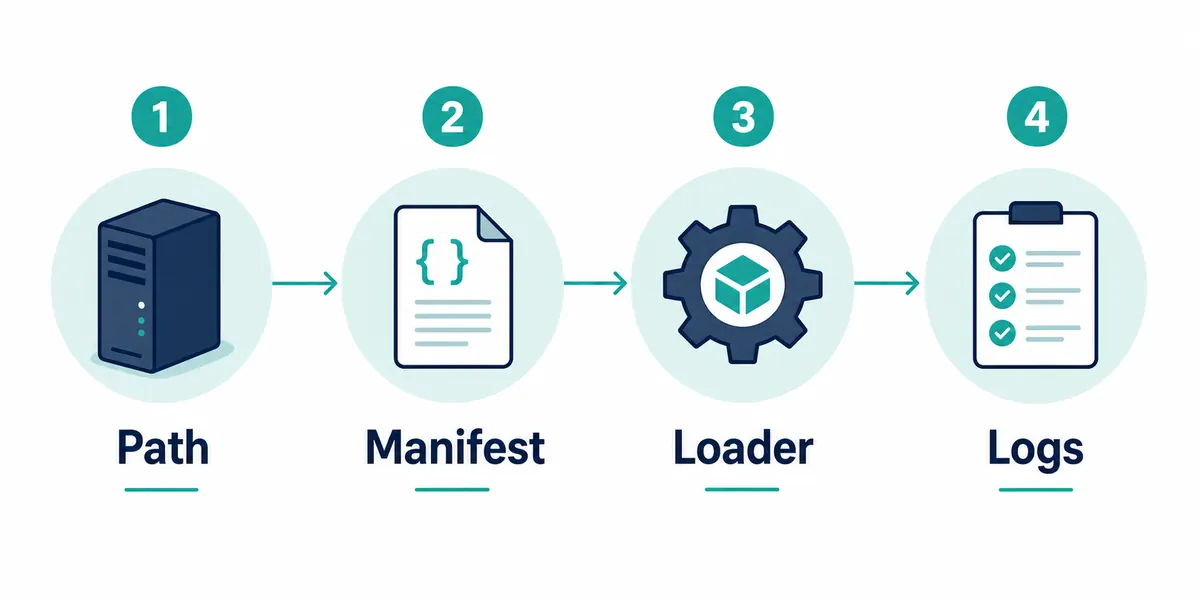
Preparing a client MRPACK on Exaroton
Do not assume the ordinary client download is the file Exaroton expects. First check whether the creator offers a server ZIP or server MRPACK for that release. If it does, use that version. If not, check whether the host's custom-modpack workflow explicitly accepts the client MRPACK and resolves its manifest for server use.
If there is no compatible direct import, use a server-aware installer that understands Modrinth manifests, or prepare the files manually in a temporary folder. Manual preparation means reviewing the manifest, downloading every referenced file, applying the correct normal and server overrides, and removing client-only mods or configuration. The general MRPACK server installation guide covers that separate manual, Docker, and host-agnostic workflow.
Keep the Exaroton server and player instance in sync
Players need a client instance compatible with the server's game version, loader, and pack release. Install the same Modrinth release on each computer with a supported launcher, or follow the pack creator's instructions if the client uses a different distribution. A server can start successfully while a player still gets rejected because the client has another loader build or missing required content.
Client-only content needs special attention. Shader loaders, rendering changes, menus, keybind helpers, and other visual mods often belong only on a player's computer. Server-required gameplay mods may need to be present on both sides. Use the manifest's environment information, the mod's project page, and the server log to decide; do not remove a mod solely because its name sounds client-focused.
Keep world data separate from the pack import until the clean server starts. Back up the world, copy it only after checking the pack's Minecraft version and compatibility notes, and preserve a rollback copy. This avoids mixing a world-format problem with an MRPACK import problem.
Common MRPACK on Exaroton problems
| What you see | What to check | Next step |
|---|---|---|
| The file is rejected or is not listed | Accepted package type and current modpack import route. | Use a supported server package or installer. Do not rename .mrpack to .zip as a workaround. |
| The server stops during startup | First error in the console, loader, Minecraft version, Java requirement, and missing dependencies. | Fix the earliest specific error, then start again before changing more files. |
| The server starts but clients cannot join | Client pack release, loader build, required mods, and server compatibility. | Install the matching release on the client and compare the disconnect message with server logs. |
| Textures change but mods do not load | Whether the selected control is a resource-pack setting. | Use the modpack workflow for MRPACK files; resource-pack upload is a separate feature. |
| Some mods or configs are missing | Manifest downloads, server pack label, and server-overrides. | Use the creator's server package or inspect the manifest with the MRPACK Reader. |
After a failed first start, fix the earliest specific console error and change one thing at a time.
FAQ: MRPACK on Exaroton
Can I upload an MRPACK directly to Exaroton?
A direct MRPACK on Exaroton upload works only when the current custom-modpack flow explicitly accepts that file type. Exaroton says it supports custom modpack uploads, but that does not mean every generic file field interprets an MRPACK manifest. If the route rejects it, use a server package or prepare the server files with a compatible installer.
Does every Modrinth modpack work on an Exaroton server?
No. Some projects are client-focused, some have a separate server pack, and some need manual preparation. Check the supported environment, exact loader, game version, required Java, and creator notes before uploading.
Is the resource-pack upload for modpacks?
No. A resource pack changes textures, sounds, or other presentation assets. A modpack contains a loader setup, dependencies, and configuration. Use the host's modpack workflow for an MRPACK.
Do players need to install the same pack?
Players need a compatible client instance with the same pack release and loader requirements. If a project documents a different client setup, follow its instructions and compare any connection error with the server log.
Can I rename an MRPACK to ZIP and upload it?
Renaming changes only the file extension. It does not resolve manifest download links, choose server-safe mods, or create a complete server installation. Use a real server pack or a Modrinth-aware preparation flow.
Sources and related guides
Exaroton's published help article confirms custom modpack upload support. Its resource-pack instructions are linked separately because that upload option handles a different kind of file. The Modrinth format reference explains the manifest and override structure.
- Aternos Support: Install modpacks (Minecraft: Java Edition), including the Exaroton custom-modpack note.
- Exaroton Support: Adding a custom resource pack, for the separate resource-pack workflow.
- Modrinth Support: MRPACK format, for manifest and override details.
Need to inspect the package first?
Use the browser-based MRPACK Reader to check the manifest, dependencies, environments, and override folders before choosing a server route.
Open MRPACK Reader