Quick answer: To upload a modpack to Modrinth, export a tested instance as a valid .mrpack file, create a Modpack project, upload the MRPACK as a version, verify its detected Minecraft and loader metadata, resolve every external-content item on the Permissions page, and then complete the publishing checklist. Do not upload a normal ZIP renamed to .mrpack.
On this page
What you need before uploading a Modrinth modpack
Uploading starts after the pack itself works. If you still have only a launcher instance or an ordinary ZIP, first follow the MRPACK creation workflow. If this is a revision of an existing release, use the Modrinth modpack update guide to test the new version before exporting it. Modrinth documents .mrpack as the upload format for a Modrinth modpack. The package is ZIP-based, but it also needs a valid modrinth.index.json, dependency metadata, referenced file URLs and hashes, plus any files that belong in overrides or server-overrides.
Before publication, import the exported file into a clean launcher profile. Confirm that the game starts, the intended Minecraft version and mod loader match, configuration files arrive in the right place, and client-only content is not forced onto a dedicated server. You can use the browser-based MRPACK Reader to inspect the manifest without uploading the pack to this site.
| Item | What to verify | Why it matters |
|---|---|---|
| Primary file | A tested file ending in .mrpack | Modrinth modpack projects require the MRPACK format. |
| Manifest | Valid name, version ID, dependencies, downloads, hashes, and environments | Bad metadata can create failed imports or misleading compatibility. |
| Project assets | Original icon, useful summary, full description, and optional gallery media | A complete listing helps users and reduces avoidable checklist gaps. |
| Permissions | Redistribution rights for every externally embedded file | Unknown or disallowed content can withhold the version. |
| Test profile | Fresh import on the claimed Minecraft version and loader | A local development instance may hide missing overrides or dependencies. |
How to upload a modpack to Modrinth step by step
1. Export a clean MRPACK file
In the Modrinth App, open the instance and use its modpack export action. Choose which configuration, resource, shader, data, and other override files should travel with the pack. Avoid adding logs, crash reports, saves, account data, or unrelated files. If you export from another compatible launcher, inspect the result before treating it as publication-ready.
2. Create a Modpack project
Sign in to Modrinth, choose Publish or Create a project, and select the Modpack project type. Add a clear title, a short summary, an accurate description, an icon you can legally use, categories, and the appropriate project license. The description should explain what the pack changes, who it is for, the expected hardware or performance profile, and any installation or server notes users genuinely need.
3. Create and upload the first version
Open the project settings and create a version. Upload the .mrpack file as the primary file. Modrinth's current version flow can detect metadata such as the version number, loaders, Minecraft releases, and client/server environments from the primary file. Review every detected field instead of assuming it is correct, especially when the pack supports multiple game releases.
4. Check the publishing checklist
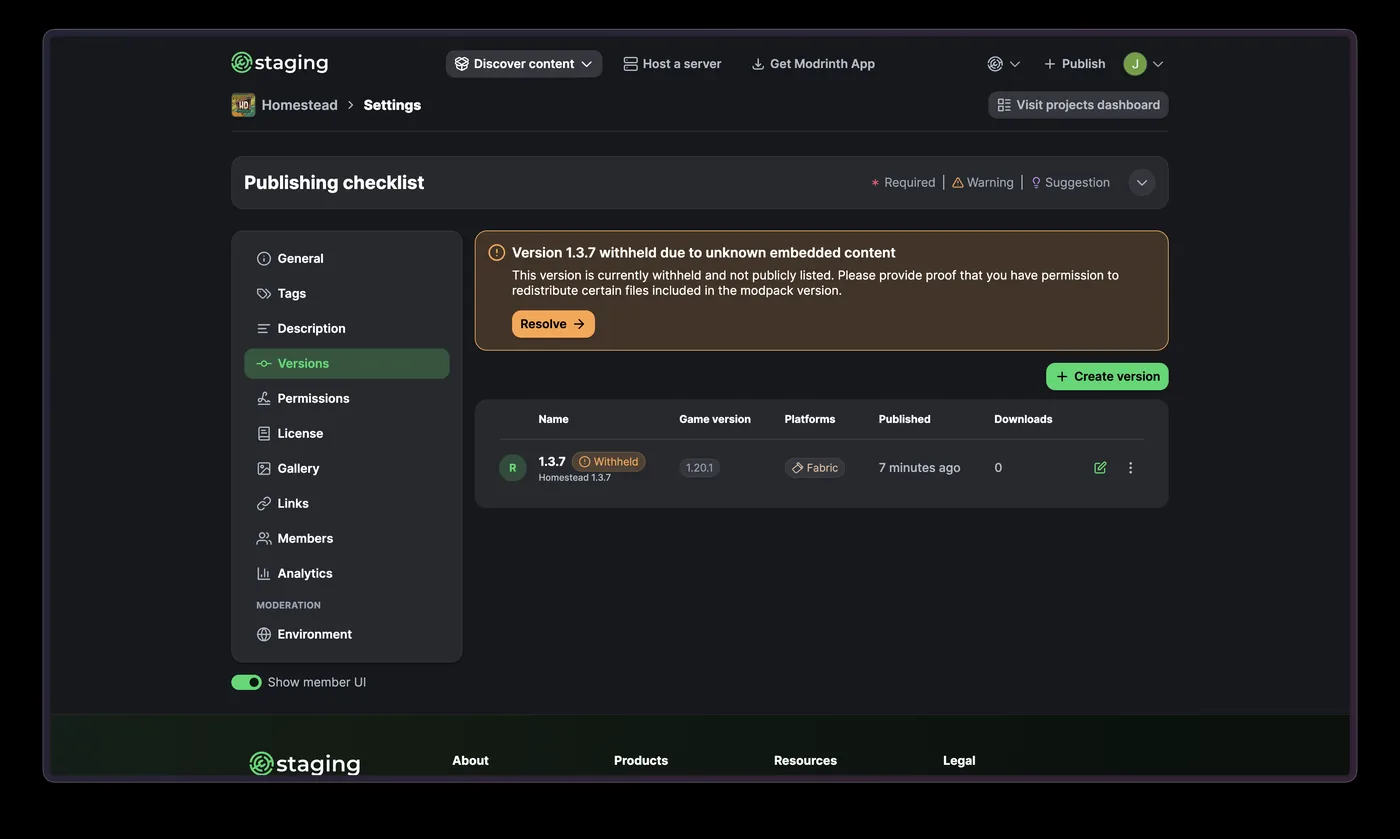
Return to the publishing checklist and resolve required items. A useful page needs more than a file: confirm the description, tags, license, version compatibility, gallery policy, and project settings. If the version is held back because the package contains unknown embedded content, do not repeatedly re-upload the same file. Open the Permissions section and address the underlying files.
How Modrinth modpack permissions work in 2026
Modrinth changed the creator workflow on June 23, 2026. New modpack projects and projects that had not yet been approved began requiring licensing information for external content before review. When an uploaded MRPACK embeds a file that Modrinth cannot identify or whose redistribution rights are unknown, the version can be temporarily withheld. This is different from a broken upload: the file reached the project, but it cannot be publicly listed until its content status is resolved.
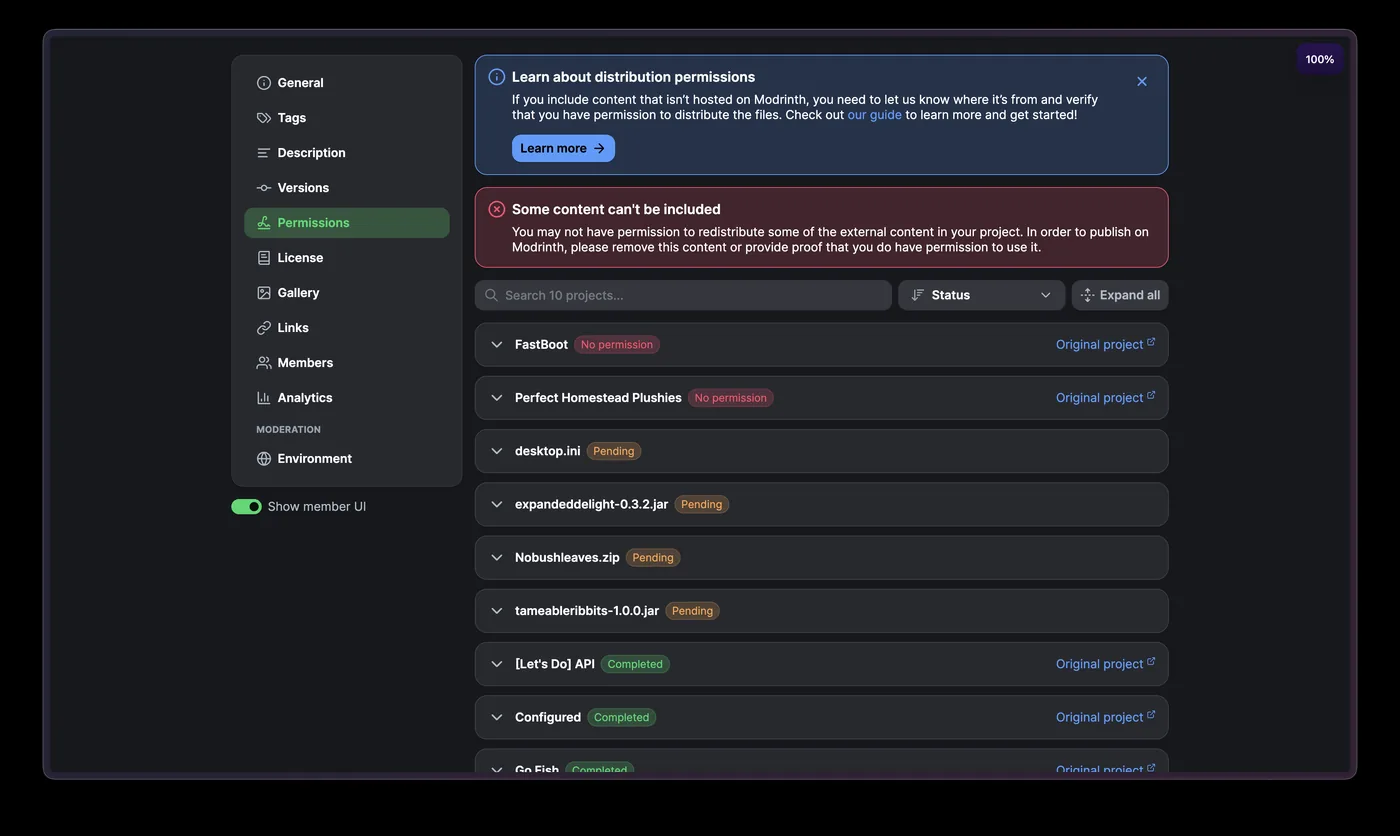
The Permissions page groups external items by status. Pending means information is still needed. Completed means the evidence has been supplied. Information rejected means the submitted explanation did not establish a right to redistribute the file. No permission means the file must be removed unless you obtain valid permission.
Choose the evidence that actually applies
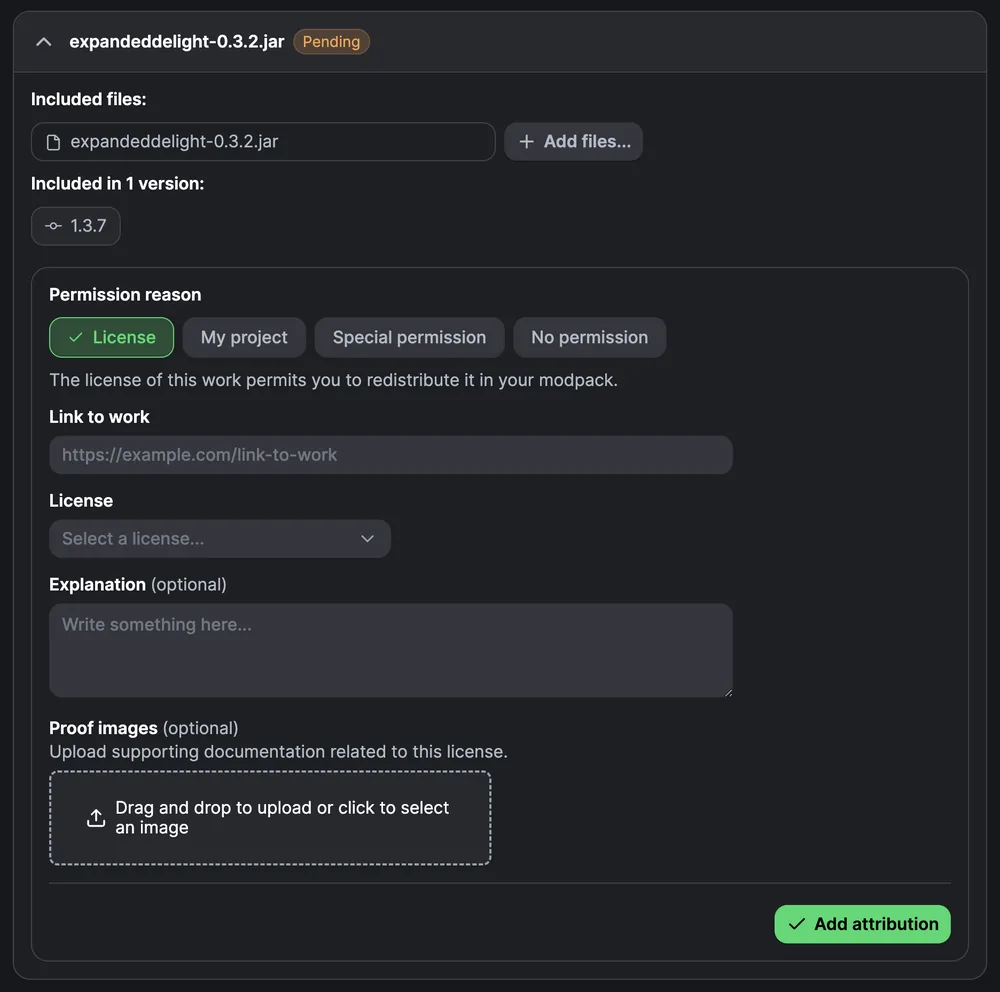
- License: use this when the work's license permits redistribution. Link to the original work and select the accurate license.
- My project: use this for content you created and own. Do not use it merely because you assembled the modpack.
- Special permission: use this when the author gave you specific permission. Provide a verifiable source or proof image.
- No permission: mark the item honestly, then remove it from the pack or obtain permission before submitting.
Content already hosted on Modrinth is generally easier for Modrinth to identify and reference. Externally embedded JAR, ZIP, shader, resource-pack, or data-pack files need closer scrutiny because uploading them can redistribute another creator's work. A project's existence on a different platform does not automatically grant permission to bundle its files.
Prepare the modpack for Modrinth review
When all required project fields and permission items are complete, test the exact file attached to the public version—not an older local export. Download it from the project while signed in, import it into a clean profile, and compare the displayed version, loader, dependencies, and environment with your project settings. If a server is part of the promise, follow the separate MRPACK server installation checks and document any server-only overrides or required launch arguments.
Final pre-review checklist
- The uploaded primary file is the tested MRPACK release.
- The version number, Minecraft versions, loader, and environments are accurate.
- The project description explains the pack instead of copying a vague one-line summary.
- Every external file is permitted, attributed, or removed.
- The icon and gallery media are original or used with permission.
- A clean client import works; server claims are separately verified.
- The version is not still marked withheld or missing required checklist items.
Common Modrinth modpack upload problems
Modrinth rejects the file type
Confirm that the primary file is a real MRPACK export. Renaming pack.zip to pack.mrpack does not create the required manifest or valid file references. Inspect the archive using the modrinth.index.json field guide.
The uploaded version is withheld
Open Permissions, locate every pending or no-permission item, and document the source. Remove files that you cannot legally redistribute, export a new version, and re-upload it. Do not describe a file as open source without verifying the license attached to that exact project or release.
The pack imports but misses configs or resource packs
Recheck the export selection and override paths. Files meant to be copied into the instance must be in the appropriate overrides area, while normal Modrinth-hosted dependencies should be represented in the manifest. Re-test with a fresh profile so cached local files do not hide the omission.
The project lists the wrong loader or game version
Edit the version metadata only after checking the manifest and testing the claimed combination. If the automatic detection reflects incorrect package metadata, fix the source instance or export configuration as well as the project listing.
Frequently asked questions
What file do I upload for a Modrinth modpack?
Upload a valid .mrpack file exported from a compatible pack workflow. A normal ZIP or a folder renamed to .mrpack is not enough.
Why is my Modrinth modpack version withheld?
A new upload can be withheld when it contains external files whose origin or redistribution permission is unknown. Resolve each item on the project's Permissions page or remove the file and upload a corrected release.
Do I need permission for every mod in a Modrinth modpack?
You need a valid right to distribute every included file. Files referenced from Modrinth are handled differently from externally embedded content, which may require a compatible license, proof of ownership, or special permission.
Can I upload a private modpack to Modrinth?
If the pack is only for a few friends, you can share a tested MRPACK file directly instead of publishing a public project. Direct sharing is faster, but it does not provide Modrinth project updates, version history, discovery, or automatic movement between releases.
How long does Modrinth modpack review take?
Review time can change with queue volume and submission quality, so do not promise a fixed approval time. The best controllable step is completing the publishing checklist and resolving permissions before submission.
Sources and verification
- Modrinth: Improving modpack review delays — June 23, 2026 permissions-flow announcement and official screenshots.
- Modrinth Help Center: Sharing modpacks — project publication and direct-file sharing options.
- Modrinth Help Center: Obtaining modpack permissions — redistribution-rights checklist.
- Modrinth Help Center: MRPACK format — required package format and manifest fields.
Final takeaway
A successful upload is a publishing workflow, not just a file transfer. Build and test a valid MRPACK, create an accurate Modrinth project, verify the version metadata, and resolve external-content permissions before submitting. That separation keeps this guide focused on publication, while the site's existing creation, inspection, conversion, and server guides handle the file-building tasks that come before and after it.
Check the MRPACK before you publish
Read the manifest locally to verify the pack name, version, Minecraft and loader dependencies, file sources, hashes, and environment rules.
Open MRPACK Reader