What you need before importing
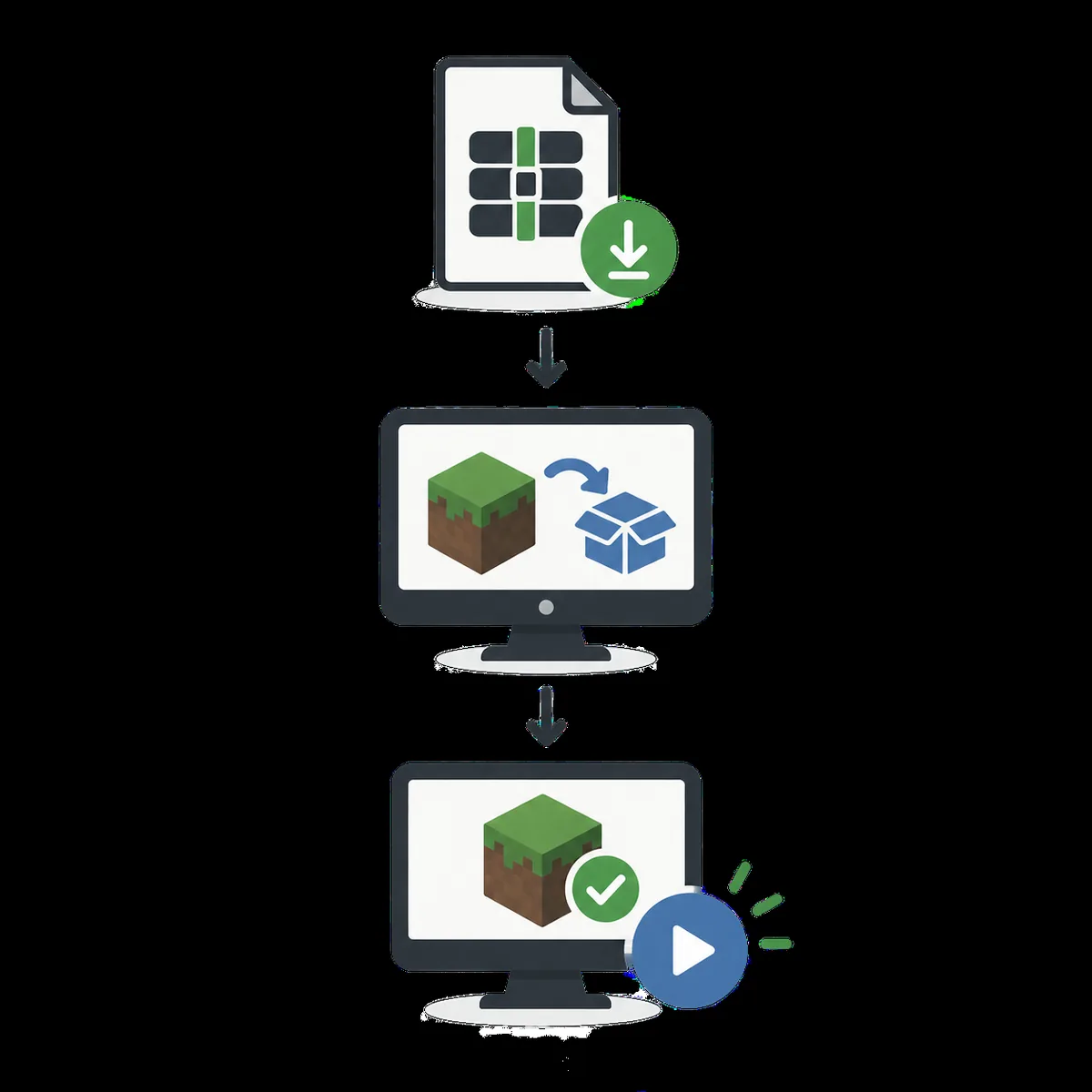
An MRPACK is a Modrinth modpack package, not a single mod and not a backup of one existing game folder. A real pack normally has a root-level modrinth.index.json manifest, override folders for configuration, and references to files that a compatible launcher can download. The manifest ties together the Minecraft version, loader, paths, hashes, and environment rules. That is why a launcher import is safer than dragging the archive into an existing profile.
Prepare these items before opening GDLauncher:
- A complete
.mrpackfile from the Modrinth project version you want. Keep the original extension and do not save the project web page as a fake archive. - A current GDLauncher installation with permission to create an instance and write to its instance directory.
- Enough storage and a stable connection. The MRPACK can be small because many mod files are references; the completed instance can be much larger.
Use a local download when possible. A local file is easier to retry than a project page, a login-gated link, or a temporary redirect. If it opens as text, has a second extension such as .mrpack.html, or is unexpectedly tiny, download the asset again.
How to install MRPACK in GDLauncher
1. Confirm the project version and loader
Open the Modrinth project and choose the exact release that matches your intended Minecraft version. Read the loader label carefully: Fabric, Forge, NeoForge, and Quilt are not interchangeable just because the pack name is the same. A pack can open as an archive while still being unusable with the wrong loader.
Download the actual MRPACK asset. Do not rename a normal ZIP, a CurseForge export, or an HTML download page to .mrpack. If the project provides several files, choose the pack file intended for the client workflow unless the project explicitly provides a separate server package.
2. Open GDLauncher and start a separate instance
Launch GDLauncher and go to its instance management area. Look for the action that adds, creates, or imports an instance. The wording can change with the launcher build, so focus on the function rather than one fixed button name. GDLauncher’s official site describes one-click installs for Modrinth and CurseForge content; a local MRPACK may appear under an import, archive, or custom-instance path depending on the version you have installed.
Choose a new instance instead of modifying a working profile. Give it a name that includes the pack and Minecraft version, such as Example Pack - 1.21.1 Fabric. A separate profile makes it easier to compare logs, remove a failed import, and protect worlds and settings that already work.
3. Select the local MRPACK or a trusted direct URL
When GDLauncher asks for a source, browse to the saved .mrpack file. If your build offers URL import, paste a direct link to the pack asset rather than a Modrinth project page. A local file is normally the more reproducible choice because it avoids redirect chains, expired signatures, and a download that changes while the launcher is reading it.
Before confirming, check the proposed Minecraft version and loader. Stop if the picker shows an HTML file, a generic ZIP, or a version that you did not intend to install.
4. Let the launcher resolve the manifest and files
Start the import and leave GDLauncher open until the progress state finishes. The launcher has to read modrinth.index.json, create the instance structure, install the declared loader, copy overrides, and retrieve referenced files. The manifest may point to more than one host, so one unavailable dependency can interrupt an otherwise valid import.
Do not close the app halfway through and assume the instance is complete because its icon appeared. If the import reports a missing file, record its name and the host shown in the log rather than replacing it with a random build.
Checks to make before the first launch
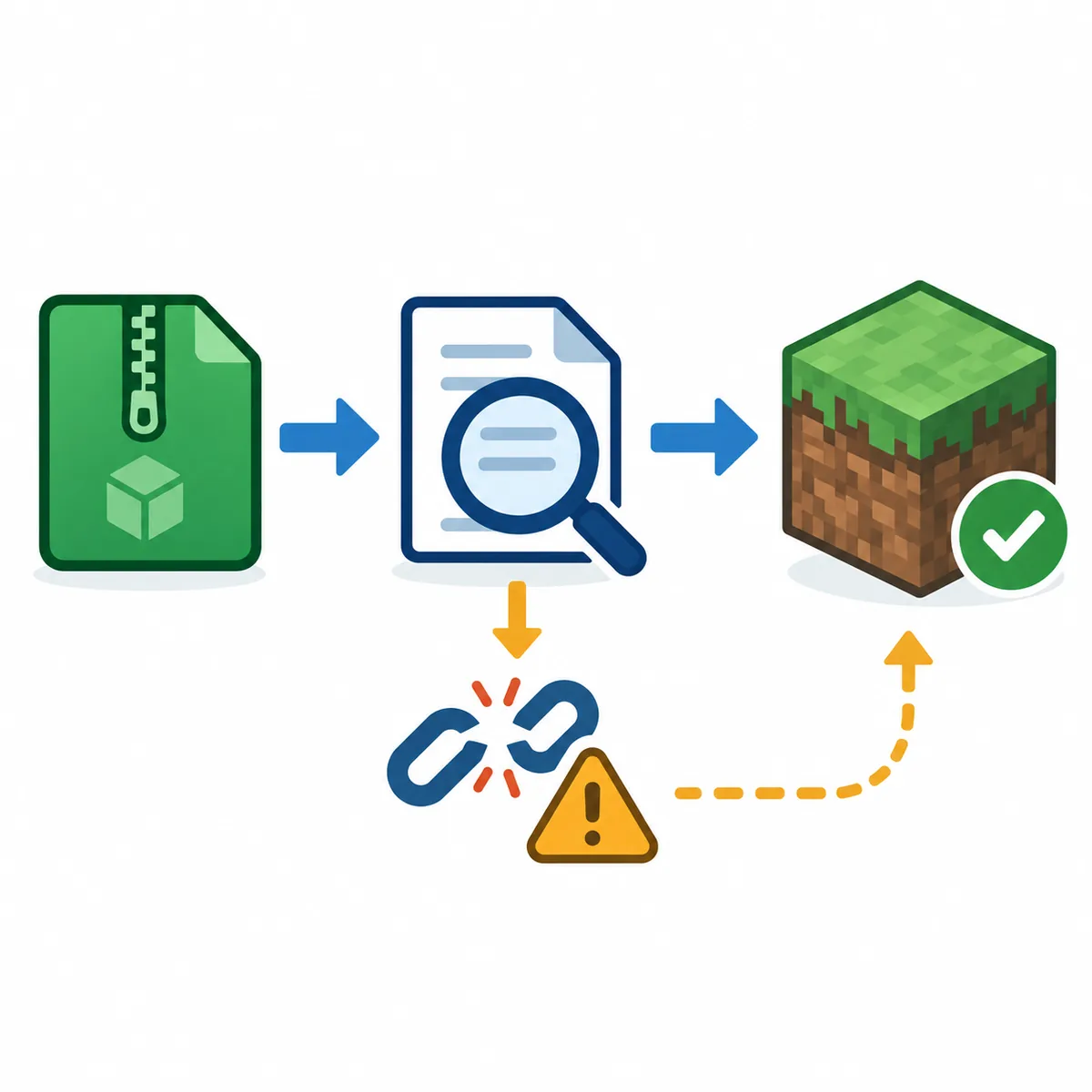
A successful import is more than a new card in the instance list. Make these checks while the problem is still easy to isolate:
- Minecraft version: Match the release shown in the pack metadata. Do not change versions just to make a separate mod appear available.
- Loader: Confirm the declared Fabric, Forge, NeoForge, or Quilt loader is installed. Loader mismatch is a common reason for a crash that looks like a missing-mod error.
- Java runtime: Use the Java version required by the Minecraft release and pack. If GDLauncher manages Java automatically, still check which runtime the instance selected.
- Instance folder: Confirm the new profile has its own directory and that overrides, configs, resource packs, and shader folders are in the expected locations.
- Download status: Read the import log for missing, blocked, or checksum-failed files. A pack with one unresolved dependency is not ready simply because the launcher created the profile.
Why GDLauncher imports fail
Most failures fit a small set of causes. The archive can be incomplete, the source can be a project page rather than a direct file, or the root manifest can be missing. A valid manifest can also reference an unavailable file.
| What you see | Likely cause | Safe next step |
|---|---|---|
| GDLauncher rejects the file immediately | Incomplete download, wrong archive type, or no root manifest | Download the asset again and inspect the archive for modrinth.index.json. |
| URL import loops or stops early | Project page, redirect, expired link, or login requirement | Use the official direct asset or save the MRPACK locally before importing. |
| Instance exists but files are missing | Dependency host failure, blocked download, or interrupted import | Read the log, retry the named files, and keep the original pack for comparison. |
| Instance launches and then crashes | Version, loader, Java, dependency, or override mismatch | Compare the instance settings with the pack release and test with a clean world. |
| Only the pack name appears | Import created a shell but did not finish resolving content | Wait for the task to finish, then remove the incomplete profile and retry if needed. |
Use the browser-based MRPACK Reader when you want to inspect a local archive without changing an instance. It can show the declared dependencies, paths, overrides, hashes, and client/server environment. That inspection cannot prove that every remote URL is still available, but it can tell you whether the file is structurally a real MRPACK.
When should you convert MRPACK to ZIP?
Keep MRPACK as the first choice when GDLauncher can process it. The manifest preserves dependency references, version information, and environment rules in a form the launcher understands. Convert to ZIP when you need manual inspection, server staging, file-by-file review, or a destination that only accepts ordinary archives.
A ZIP conversion does not repair a missing download and does not create a native GDLauncher instance. The output may contain overrides and files that were successfully retrieved, while still missing a dependency that the original manifest referenced. If you need this fallback, use the site's MRPACK to ZIP guide, inspect the result, and keep the original MRPACK as your source of truth.
For a broader launcher decision, read how to install MRPACK files in Minecraft. If you only need to see what is inside the package, how to open an MRPACK file explains the difference between opening an archive and installing its referenced dependencies. These are different tasks, and choosing the wrong one can create a broken profile.
FAQ
Can GDLauncher install MRPACK files?
GDLauncher is built around modpack installation from Modrinth and CurseForge. Use the instance or import path exposed by your installed build, select the complete MRPACK, and then verify the version, loader, Java runtime, and dependency downloads before launching.
Where should I put an MRPACK file for GDLauncher?
Keep it in Downloads or another normal archive folder and select it through the launcher workflow. Do not put the raw package in .minecraft/mods; that folder expects individual mod files after an instance has the correct loader.
Why does GDLauncher say the MRPACK is invalid?
Check whether the file completed downloading and whether modrinth.index.json is at the archive root. A saved project page, renamed ZIP, or interrupted download can fail before GDLauncher reaches dependency installation.
Do I need to convert MRPACK to ZIP for GDLauncher?
Usually no. Use the original MRPACK when the launcher can import it. Convert only for manual inspection, server preparation, or a destination that does not understand Modrinth metadata.
Bottom line
To install MRPACK in GDLauncher, keep the original package, create a separate instance, choose the file or a trusted direct asset, and wait for the manifest and dependencies to finish resolving. Verify the Minecraft version, loader, Java runtime, overrides, and download log before trusting the profile. If something fails, inspect the archive and source URL first. ZIP conversion is a recovery path for manual work, not a replacement for a metadata-aware import.